How to edit a record in YakTables
Records change as the work moves along. Editing in the record panel saves a new revision and adds it to the record's activity, so anyone can see what changed and when.
Before you start
- Edit access to the table
Transcript
Update a record and keep a revision history of every change.
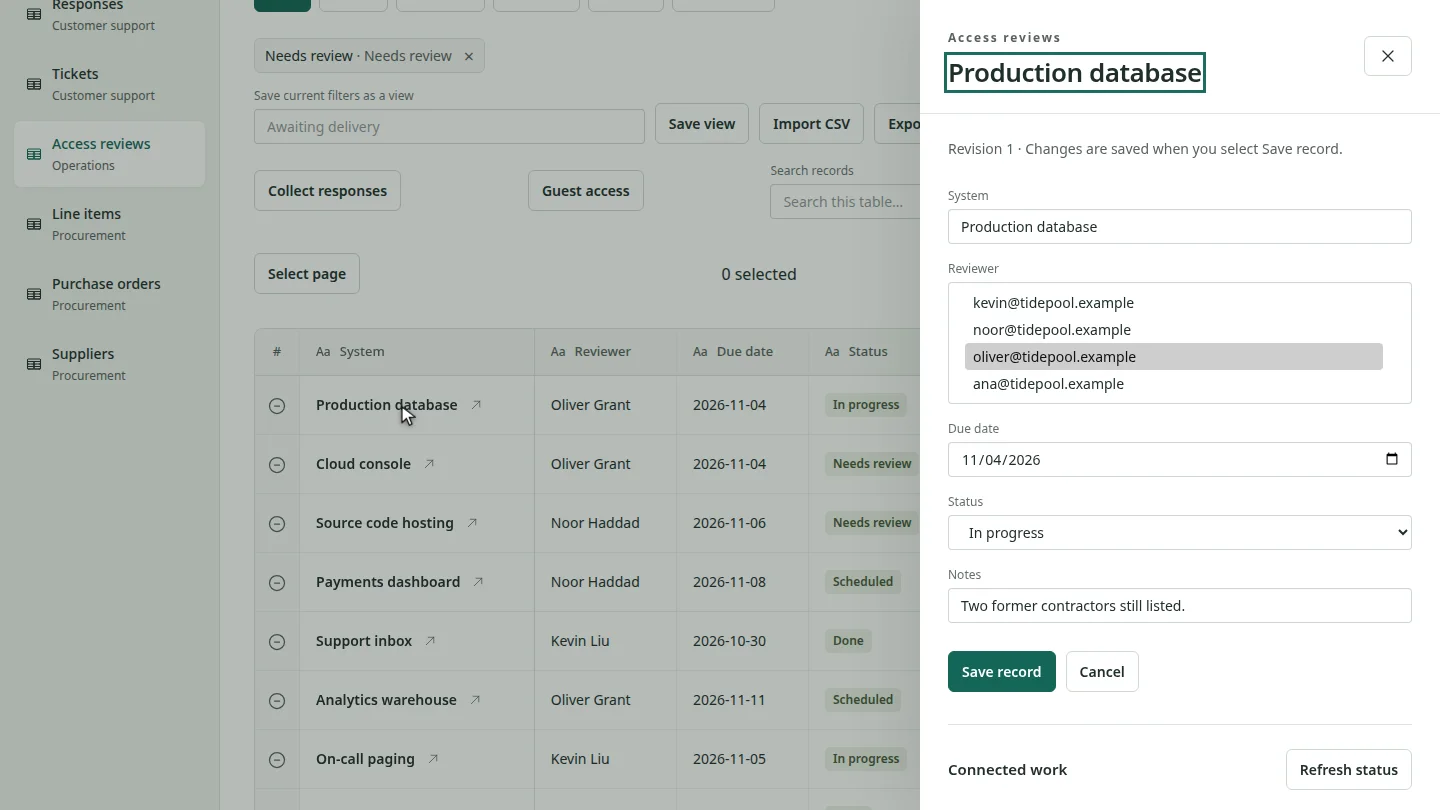
Open the table and select the record's name in the first column. The record panel opens beside the grid, showing every field and the revision you're editing.
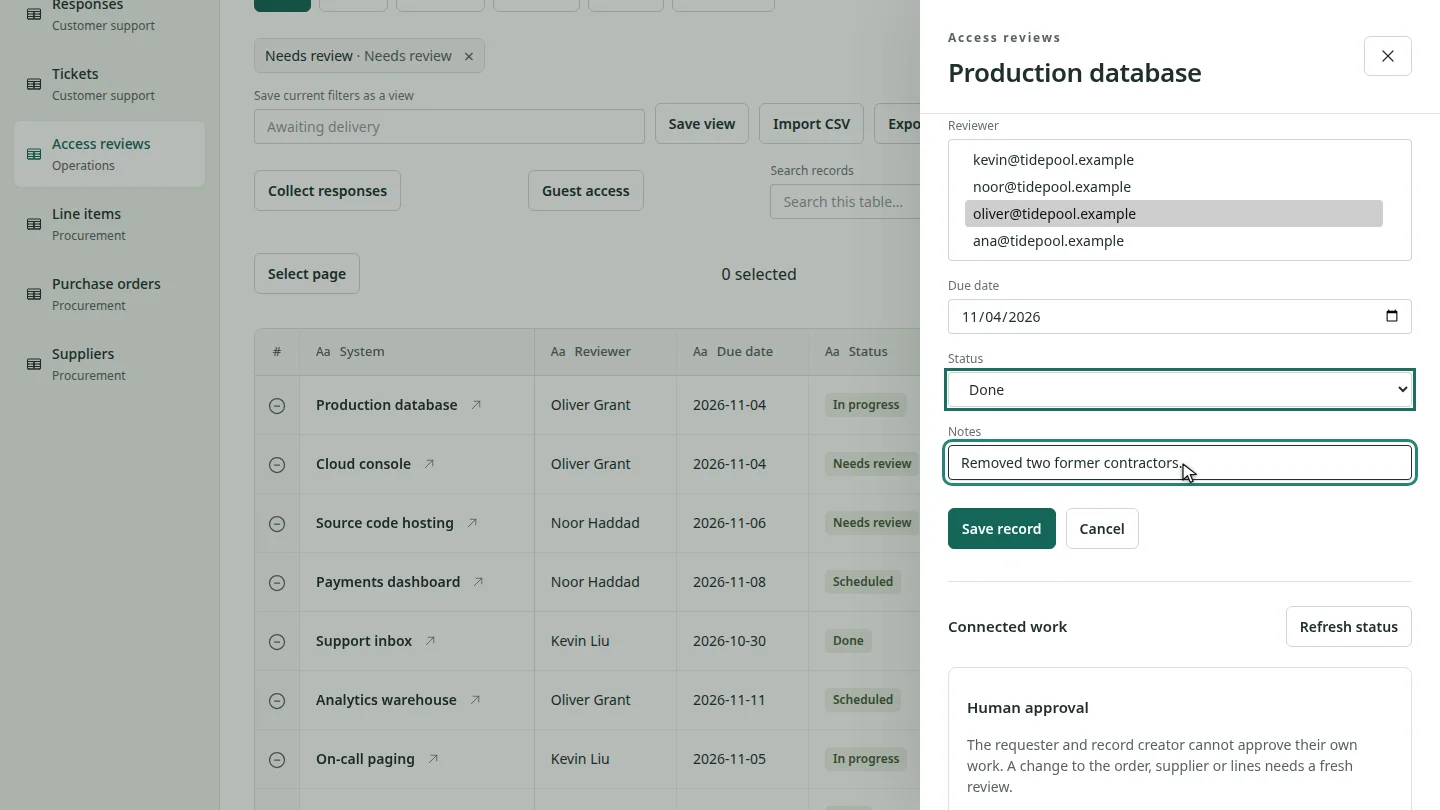
Change the status to Done, and update the notes to say what you found. Nothing is saved until you select Save record.
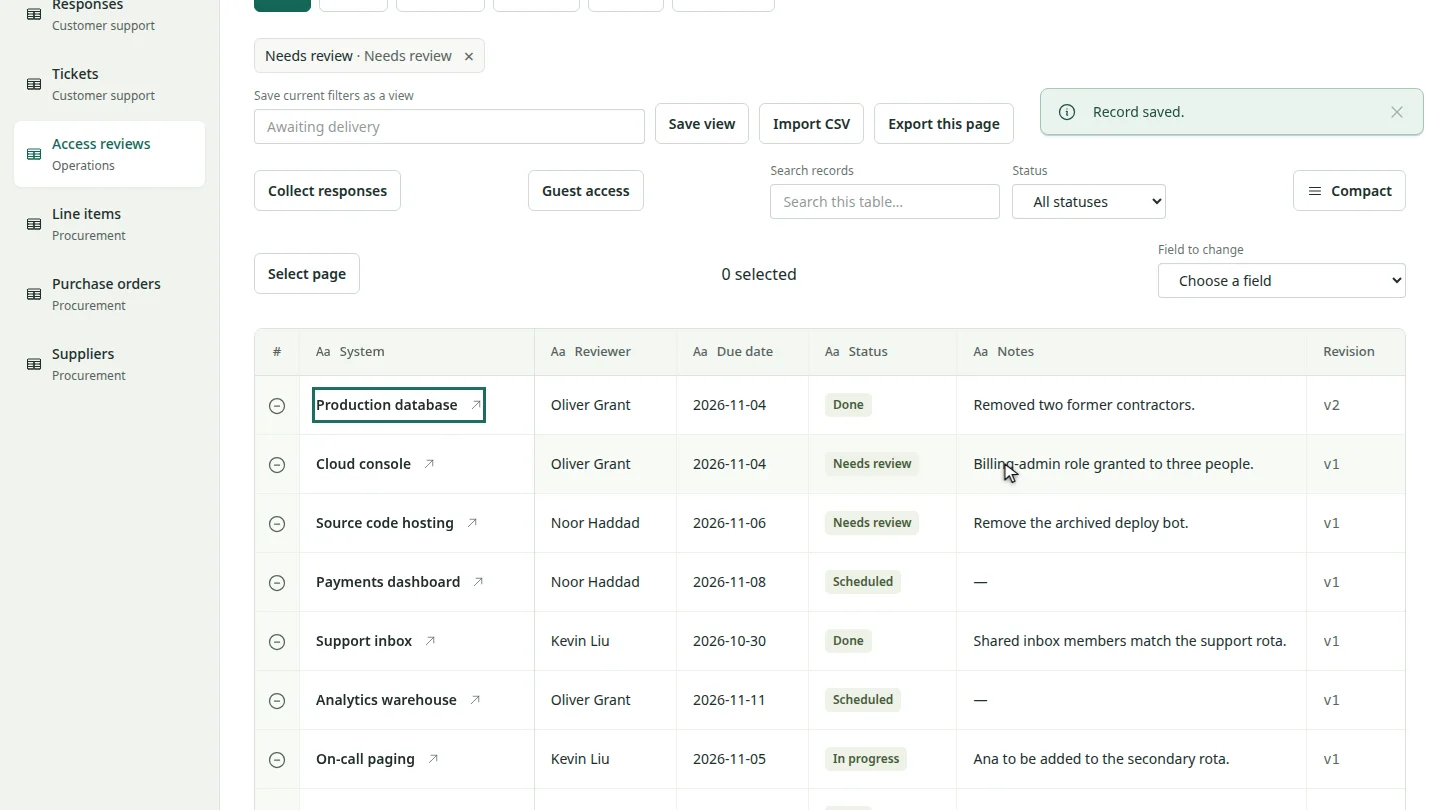
Select Save record. In the grid, the row now shows Done with your new notes, and its revision moves from one to two.
Steps
Open the record ▶ 0:05
Open the table, then select the record's name in the first column.
Change the values ▶ 0:15
Change the fields you need, such as Status and Notes.
Save the record ▶ 0:23
Select Save record. The grid shows the new values and revision.
Next steps
Updated 2026-10-26
update record change status revision history