How to publish a response form in YakTables
Customers and colleagues outside your workspace can send you requests without seeing your table. A response form asks only the questions you choose, and each answer arrives as a new record.
Before you start
- Manager access to the application
Transcript
Collect requests from people outside your workspace, straight into a table.
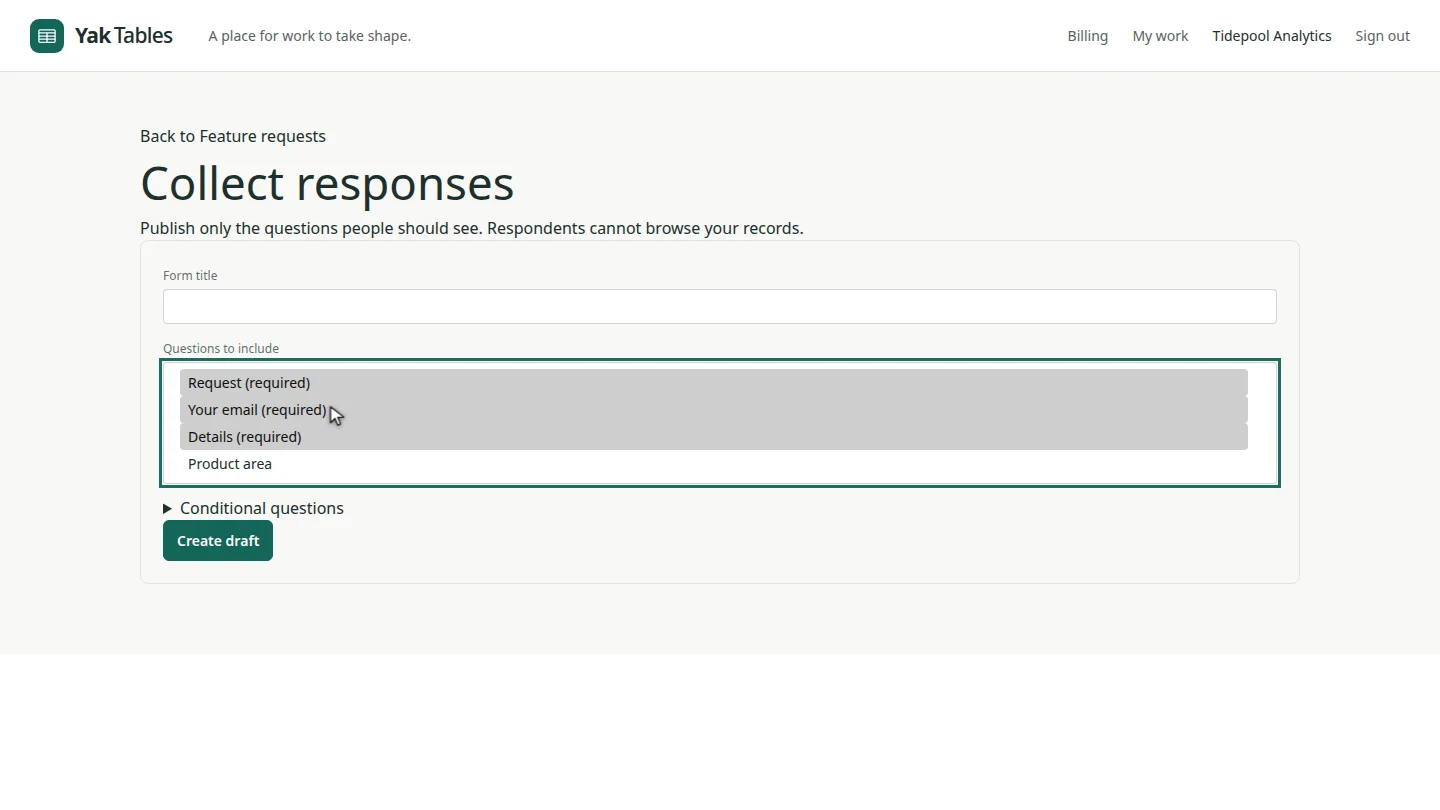
Open the table and select Collect responses. The required questions, Request, Your email and Details, are already selected.
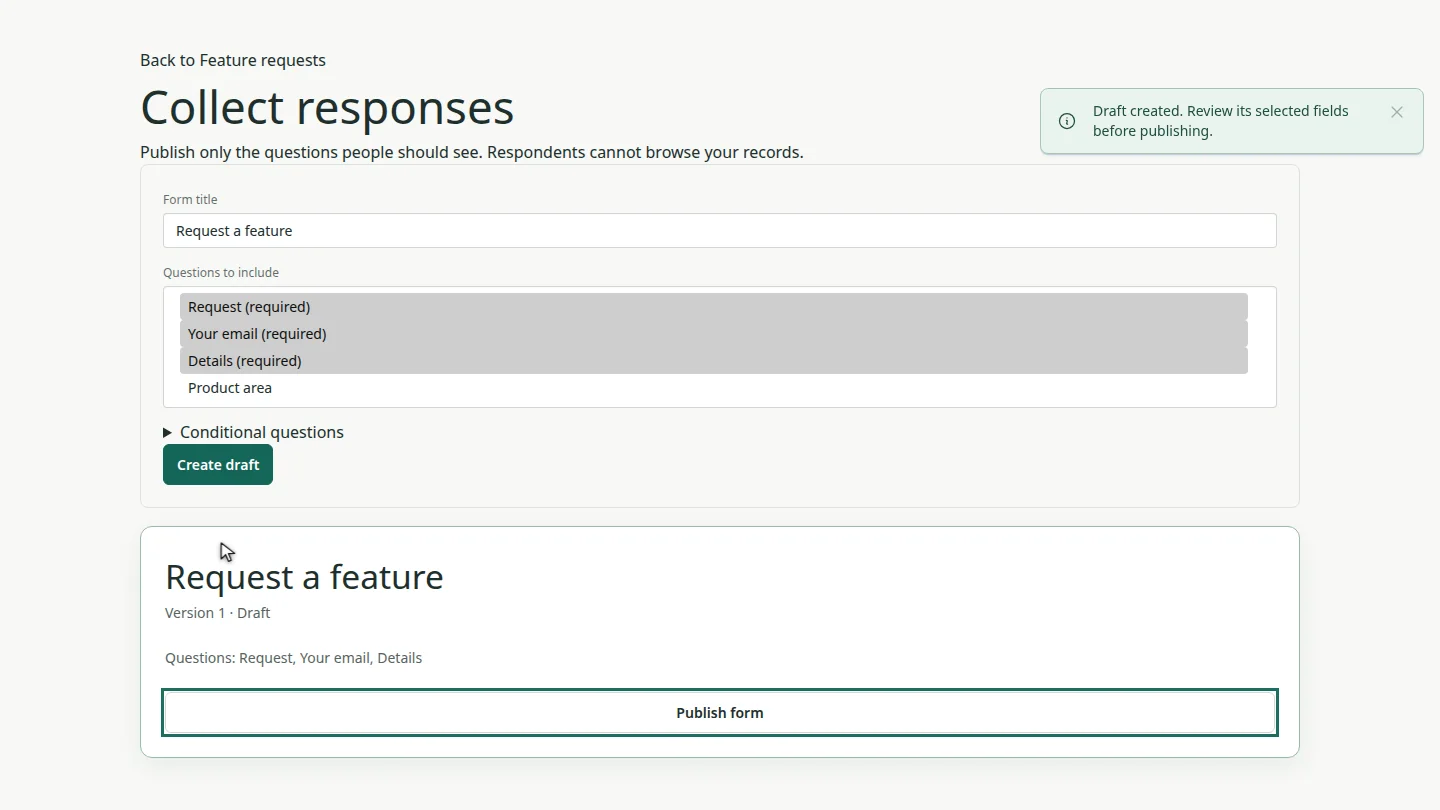
Give the form a title, and select Create draft. The draft shows its version and the questions it asks.
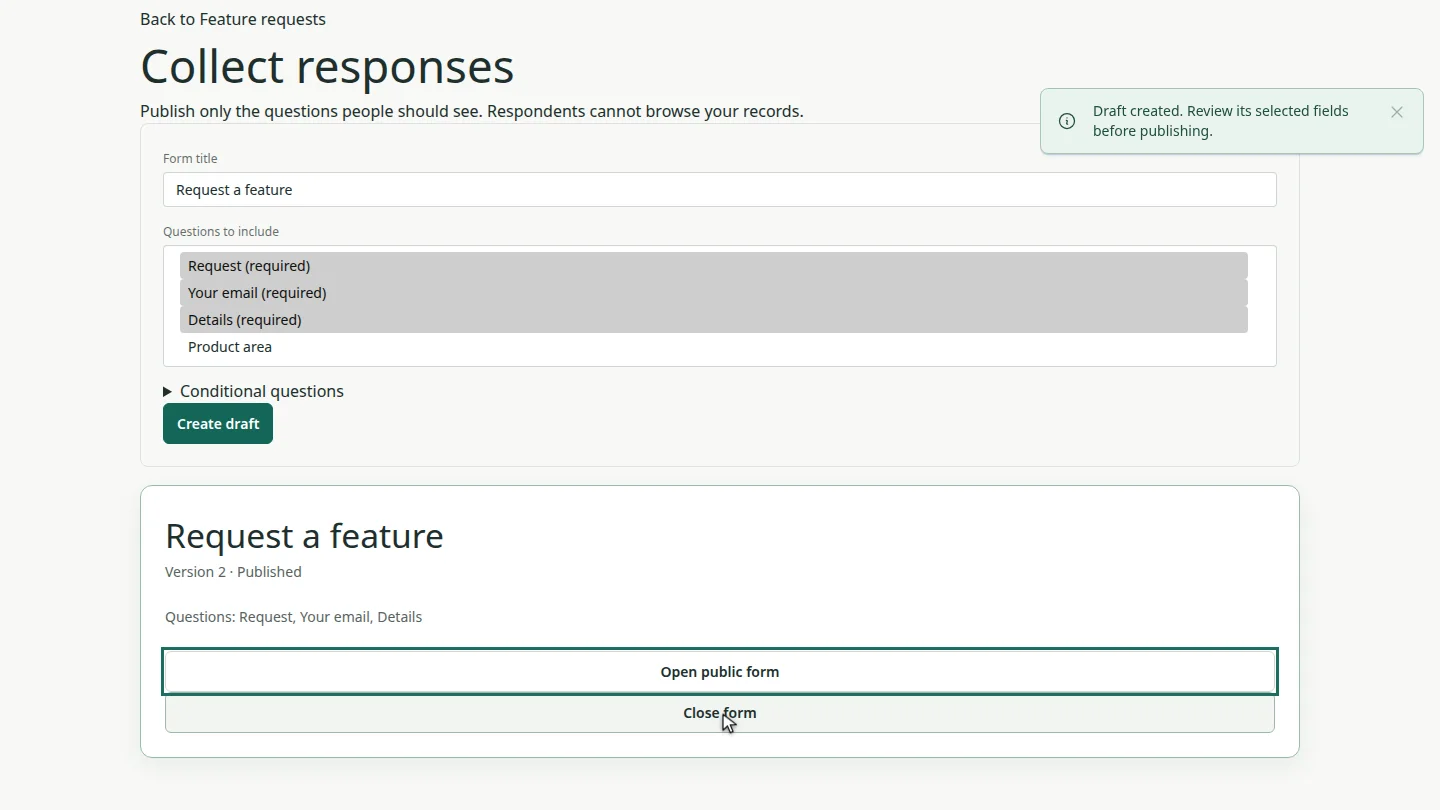
Select Publish form and confirm. The form is published, and Open public form gives you the link to share.
Steps
Open Collect responses ▶ 0:06
Open the table and select Collect responses. The table's required questions are selected under Questions to include.
Create a draft ▶ 0:15
Enter a Form title, add any optional questions, then select Create draft.
Publish it ▶ 0:23
Select Publish form and confirm. Select Open public form to see the page respondents use.
Next steps
Updated 2026-10-26
web form intake form public form survey request form