How to share a table with a guest in YakTables
Clients, suppliers and contractors often need to see or update a few records without joining your workspace. A guest invitation shares one table, limited to the fields and records you choose, and expires on its own.
Before you start
- Manager role on the application
- The guest's email address; they sign in with that verified address
Transcript
Share just the right fields and records with someone outside your workspace.
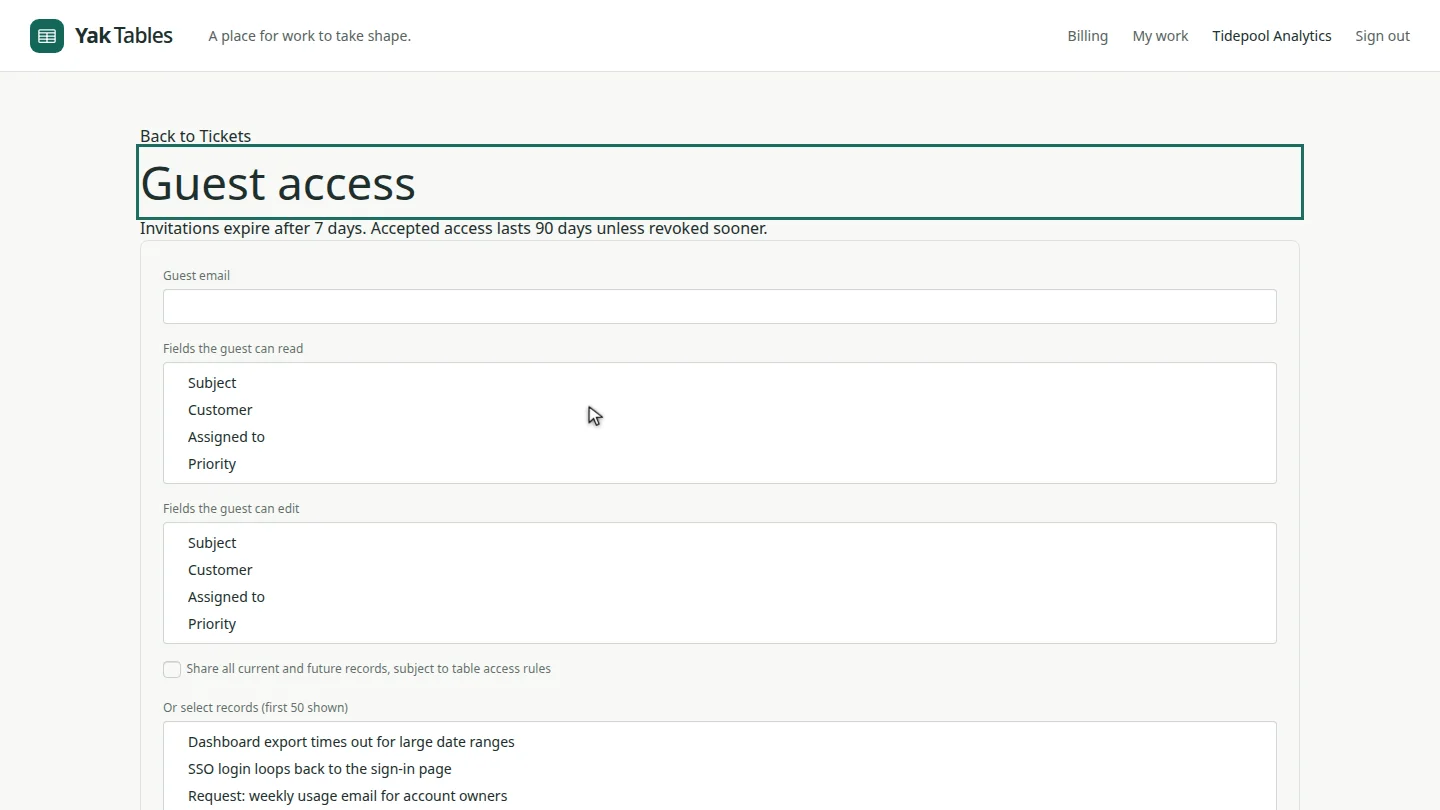
Open the table and select Guest access.
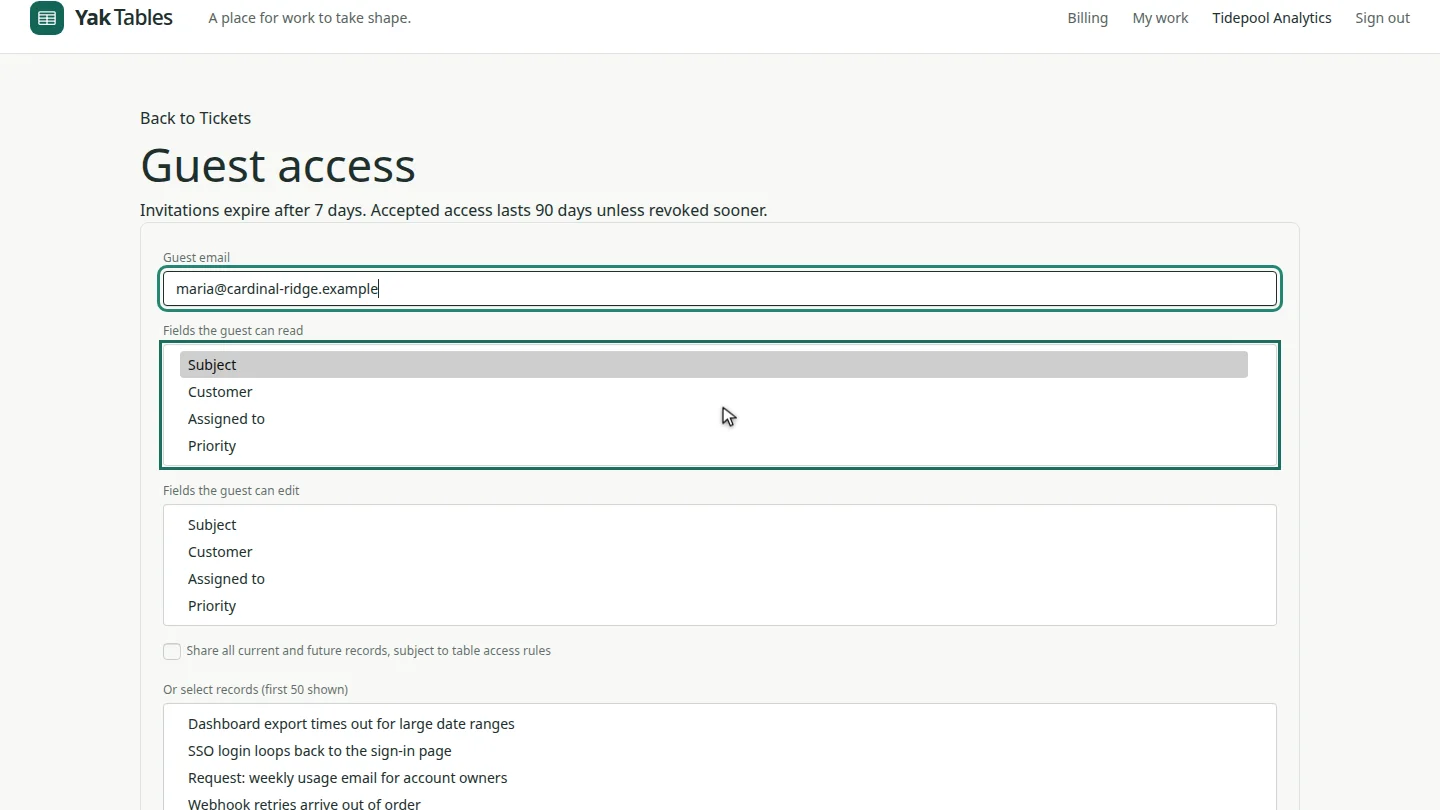
Enter the guest's email. Choose the fields they can read, then any of those they can edit.
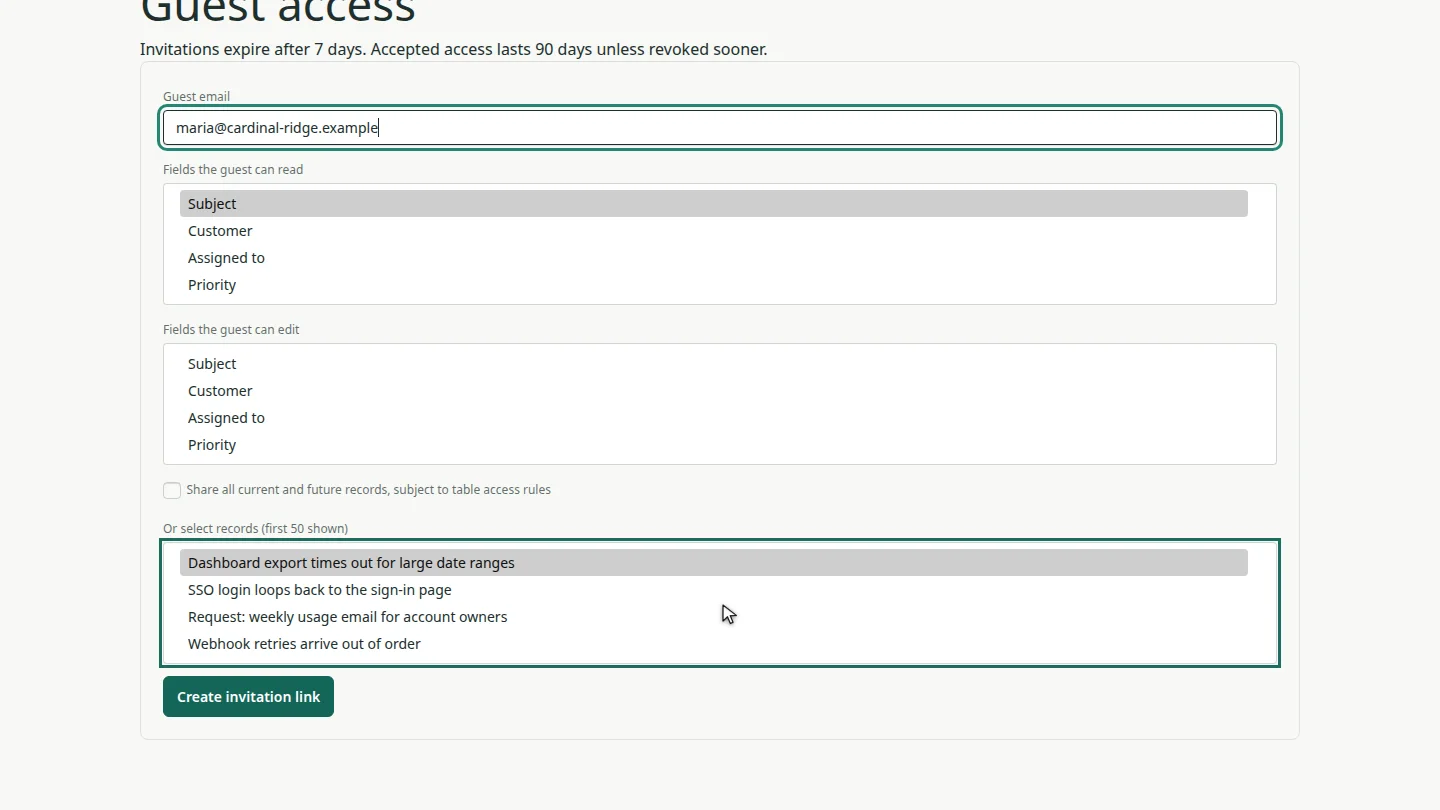
Choose the records to share, or tick the box to share all current and future records.
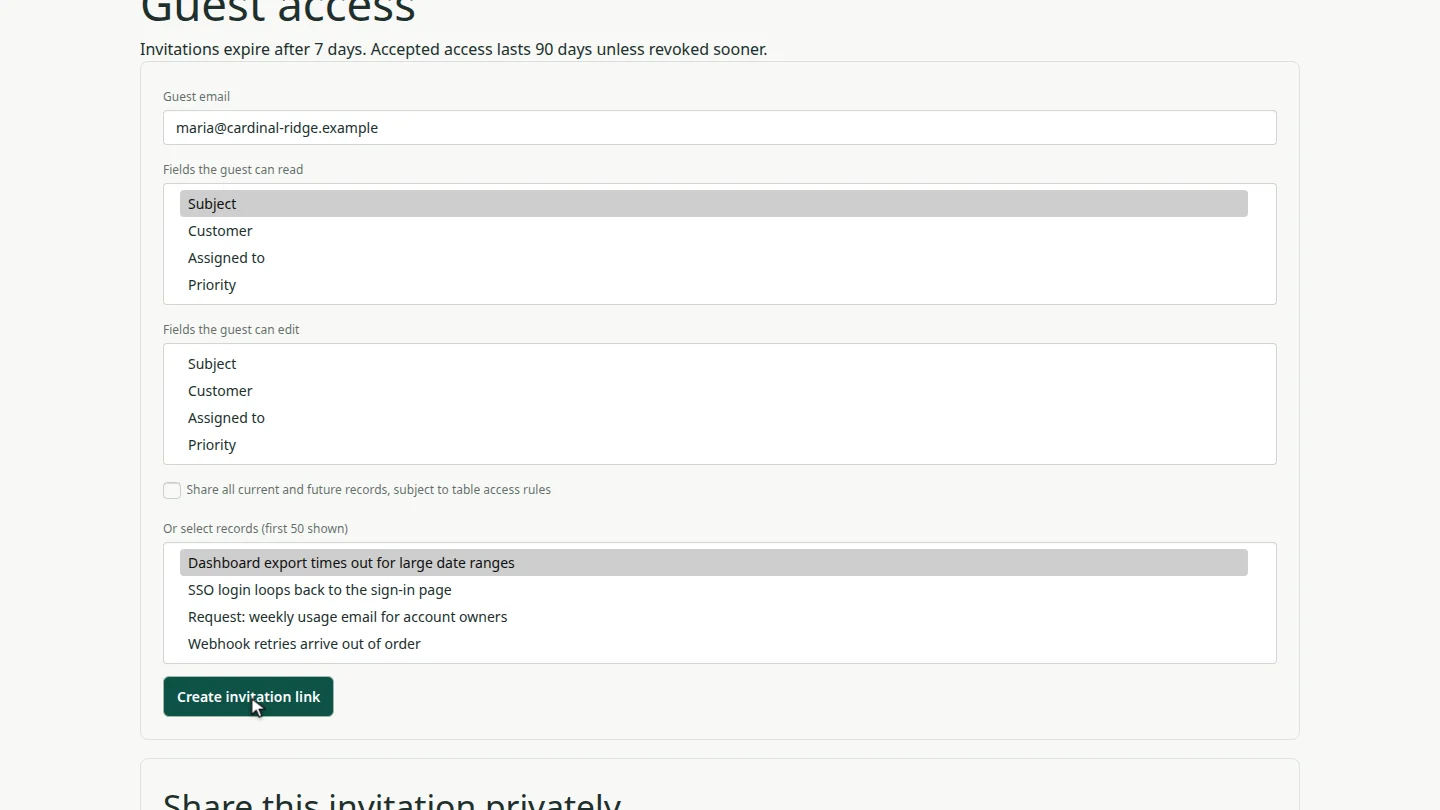
Select Create invitation link and send the link to your guest privately. It expires after seven days; once accepted, access lasts ninety days unless you revoke it.
Steps
Open guest access ▶ 0:06
Open the table, then select Guest access.
Choose what they can see and edit ▶ 0:09
Enter the Guest email. In Fields the guest can read, choose the fields to share. In Fields the guest can edit, choose any they may change; editable fields must also be readable.
Choose the records ▶ 0:15
Pick records in Or select records, or tick Share all current and future records.
Create and send the link ▶ 0:21
Select Create invitation link, copy the Invitation link and send it privately. Invitations expire after 7 days; accepted access lasts 90 days. Select Revoke access to end it sooner.
Next steps
Updated 2026-10-31
guest access share with client external user share table invite guest field permissions