How to upgrade to a paid plan in YakTables
Team and Business raise the workspace's editor, record, storage and monthly allowances. Payment is handled on a secure Stripe checkout page.
Before you start
- A workspace administrator in YakTables
Transcript
Move your workspace to Team or Business when you need higher allowances.
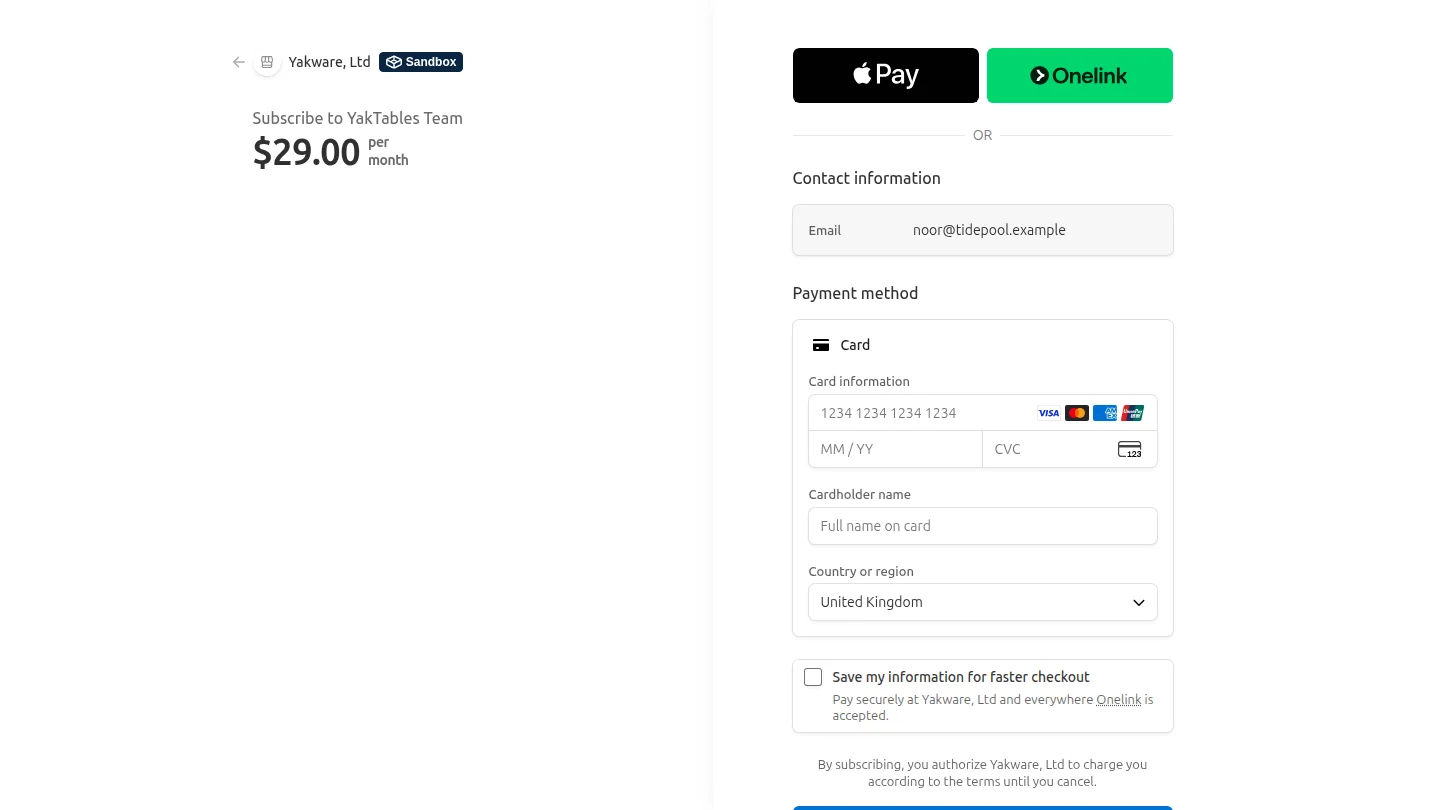
In Billing, find the plan cards and select Choose Team. Stripe's secure checkout opens with the plan and its monthly price.
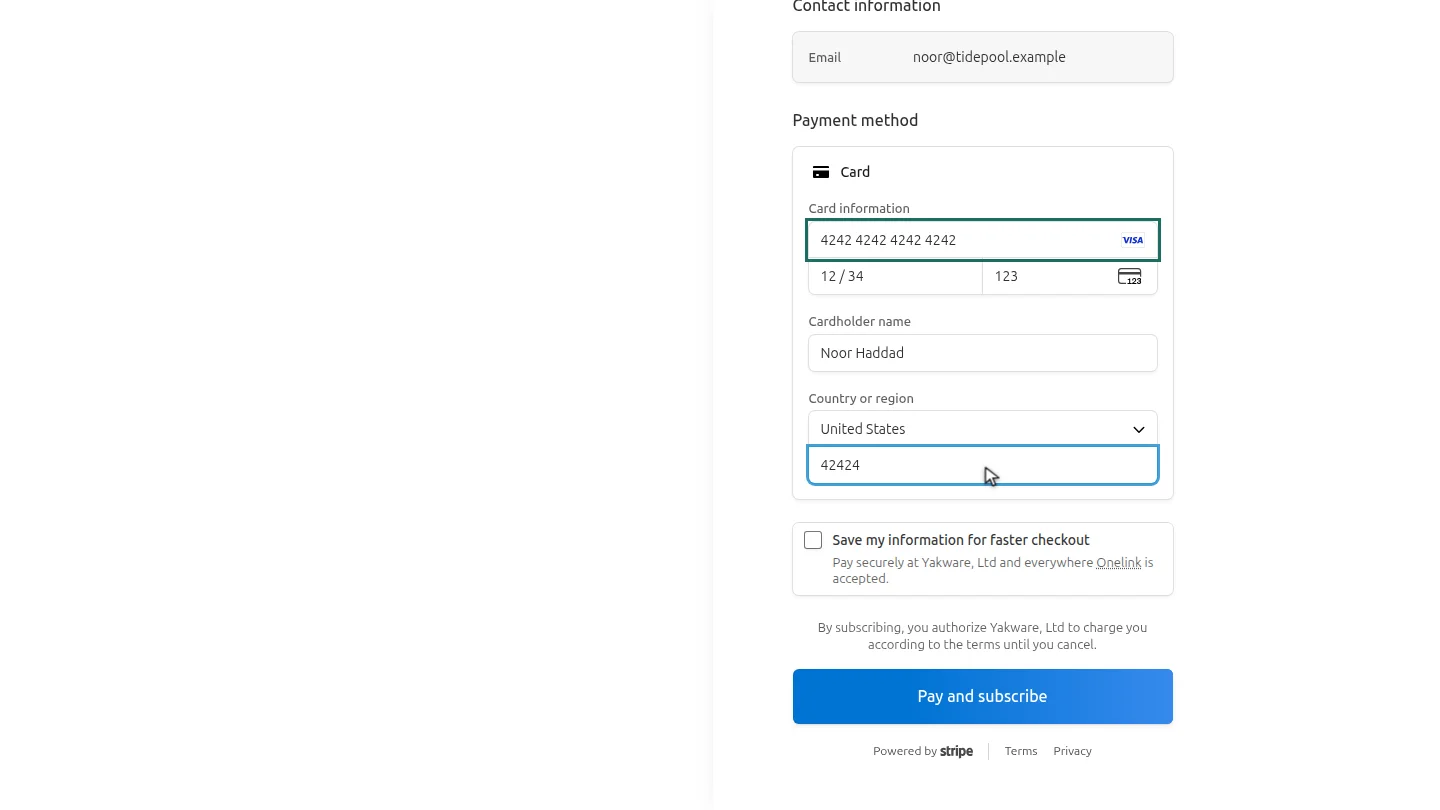
Enter your card details, the cardholder name and your billing country and postal code.
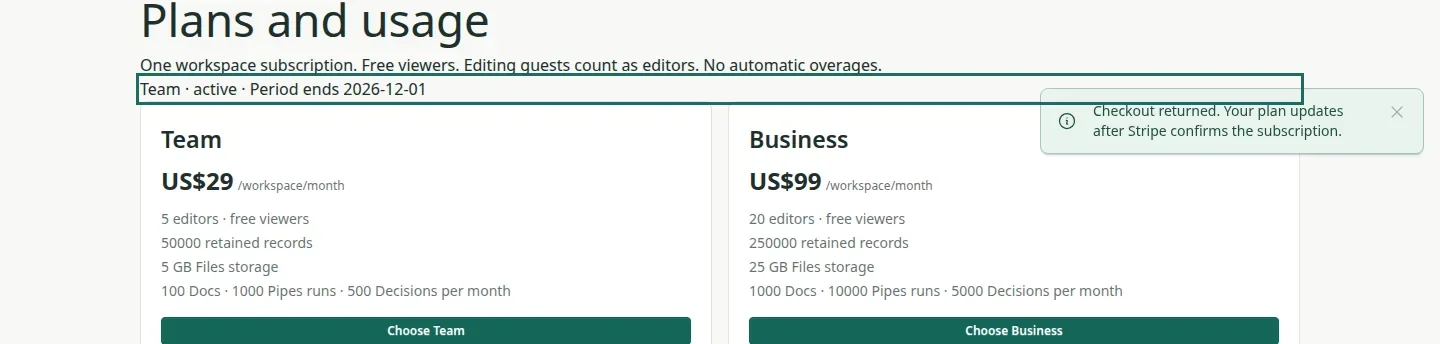
Select Pay and subscribe. You return to Billing. Once Stripe confirms the payment, select Refresh status, and the plan line shows Team.
Steps
Choose a plan ▶ 0:06
In Billing, select Choose Team or Choose Business. Stripe's checkout page opens with the plan and its monthly price.
Enter your payment details ▶ 0:15
Enter the card number, expiry date, CVC, cardholder name, and your billing country and postal code.
Pay and confirm the new plan ▶ 0:20
Select Pay and subscribe. Back in Billing, select Refresh status. The plan line shows the new plan.
Next steps
Updated 2026-10-26
upgrade subscribe pricing team plan business plan