How to create a table in YakTables
Most operations lists start life in a spreadsheet that only one person keeps up to date. A YakTables table gives the list fields, statuses and a history of every change, so the whole team works from the same records.
Before you start
- A workspace administrator in YakTables
Transcript
Turn a spreadsheet list into a shared table your whole team can update. Here's how to create a table in YakTables.
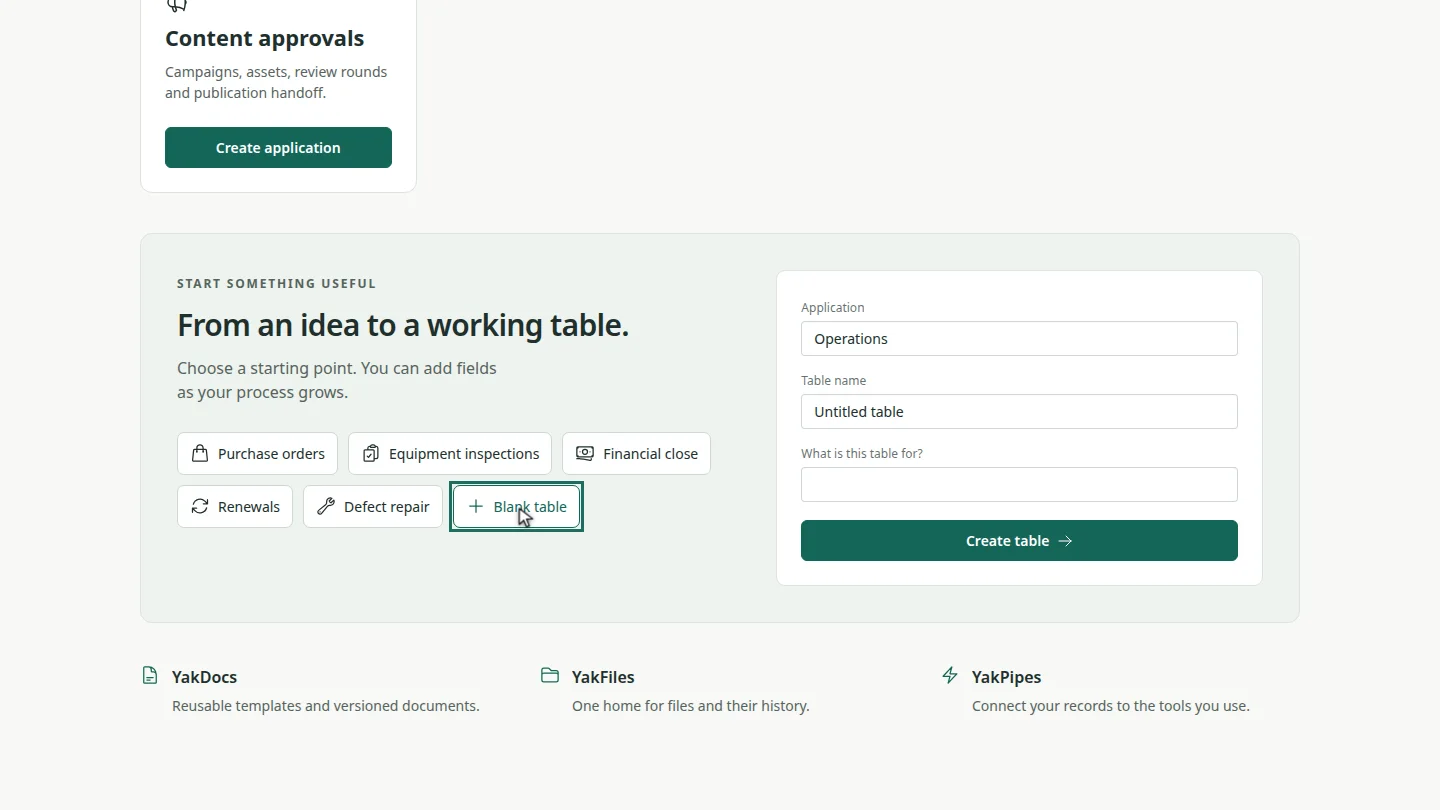
On the workspace home, scroll to the starting points and choose Blank table. The form beside it is filled in with the Operations application.
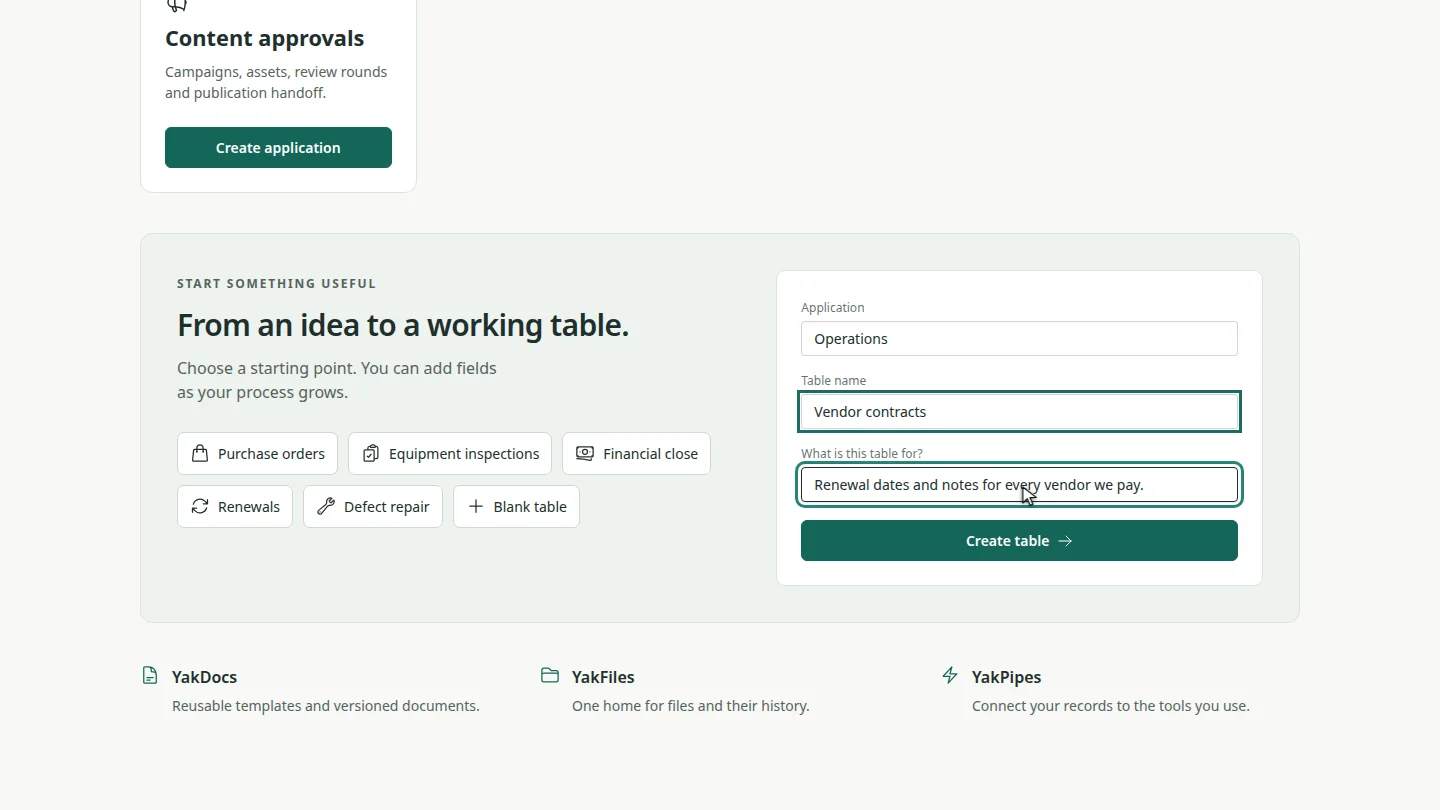
Give the table a name, and add a sentence about what it's for. Your team sees both on the table's card.
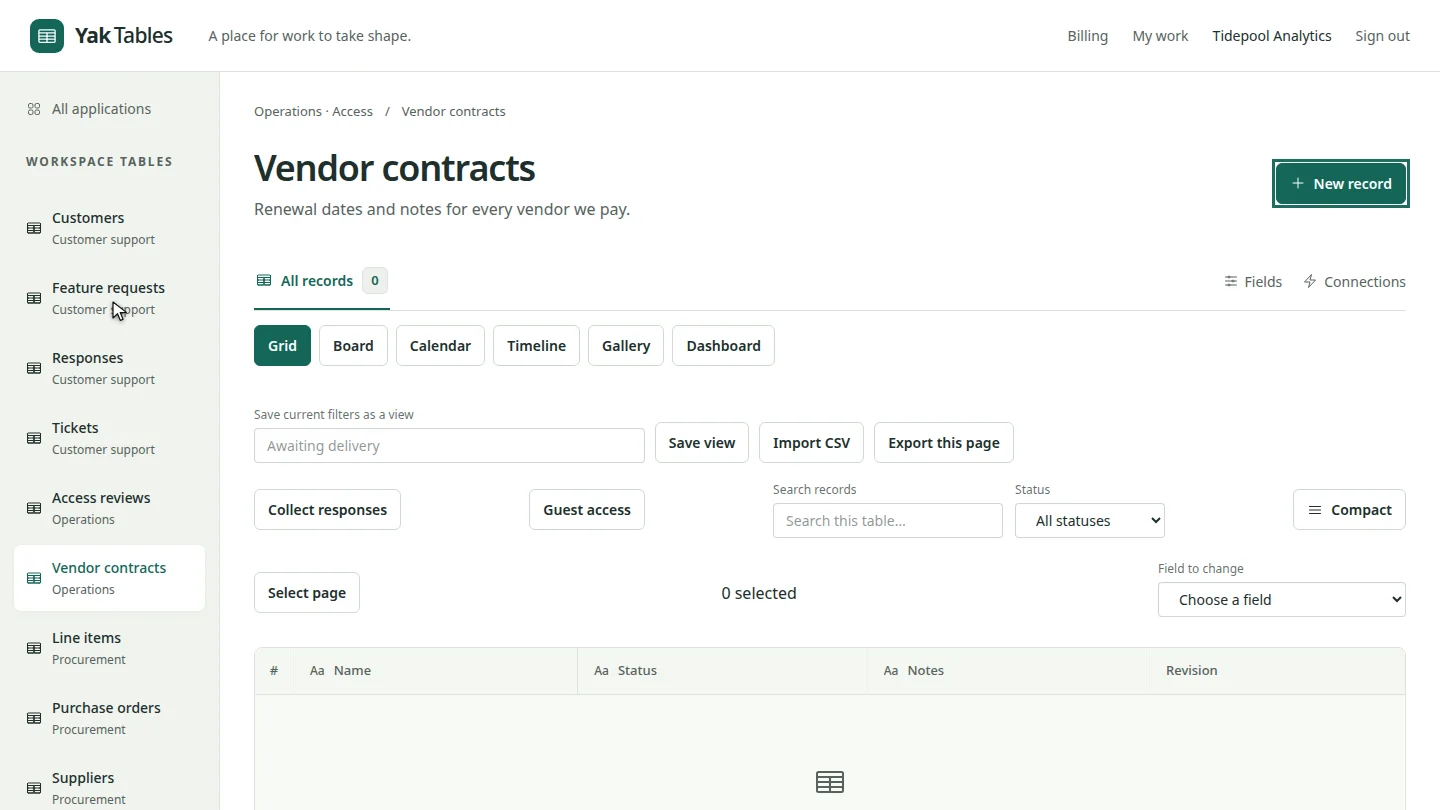
Select Create table. The new table opens, empty and ready for its first record.
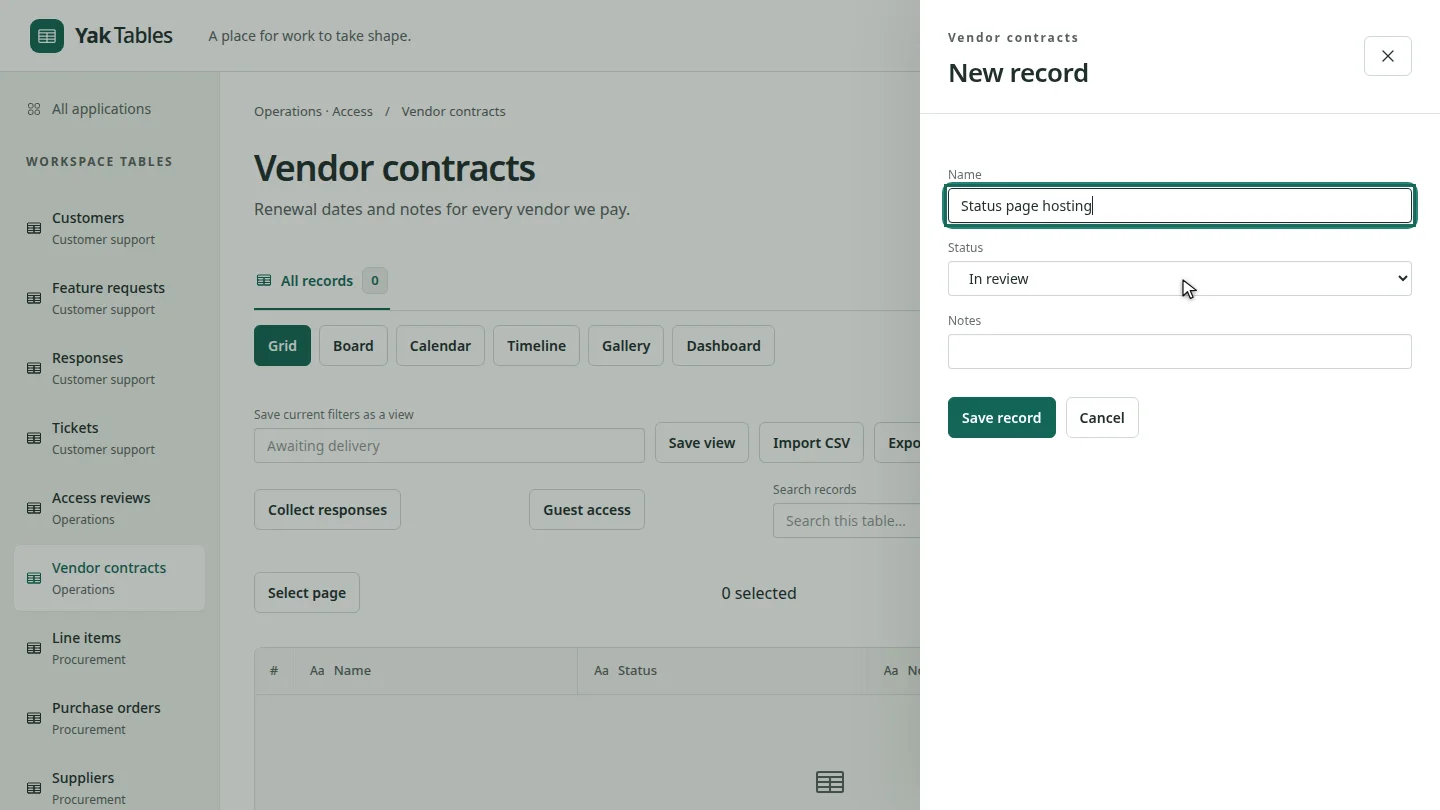
Select New record, type a name, and choose a status.
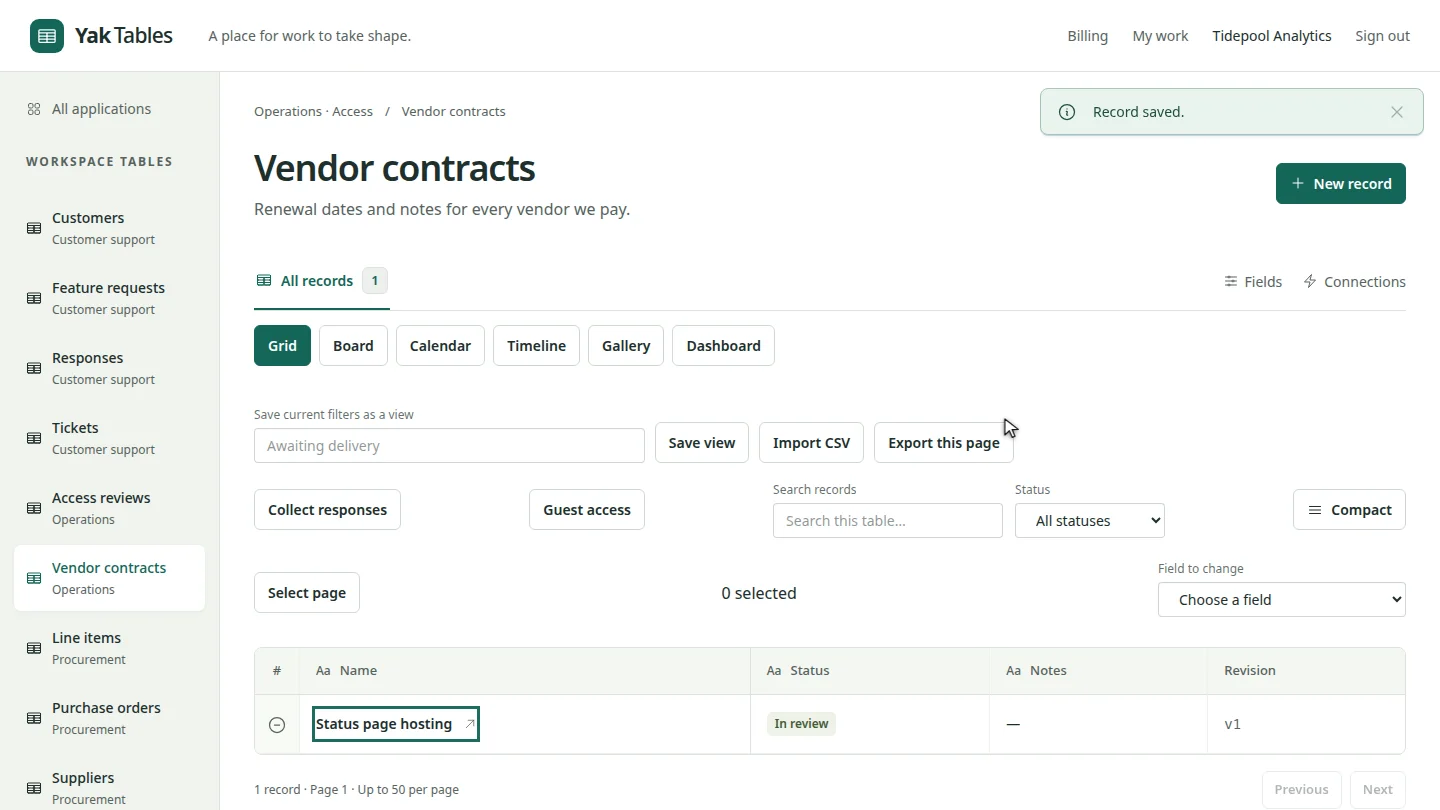
Select Save record. The panel closes, and the record appears in the grid as revision one.
Steps
Choose a starting point ▶ 0:08
On the workspace home, under From an idea to a working table, select Blank table.
Name the table ▶ 0:18
Enter a Table name and, optionally, describe it in What is this table for?
Create the table ▶ 0:25
Select Create table. The new, empty table opens.
Add a record ▶ 0:31
Select New record, enter a Name, and choose a Status.
Save the record ▶ 0:36
Select Save record. The record appears in the grid.
Next steps
Updated 2026-10-26
new table spreadsheet database register first record