How to give a teammate access to an application in YakTables
Not everyone needs to change every table. Application roles let a colleague read, edit, approve or manage just the tables in one application, such as procurement.
Before you start
- Manager access to the application
- The colleague already has a user in the workspace
Transcript
Let a colleague into one application with exactly the access they need.
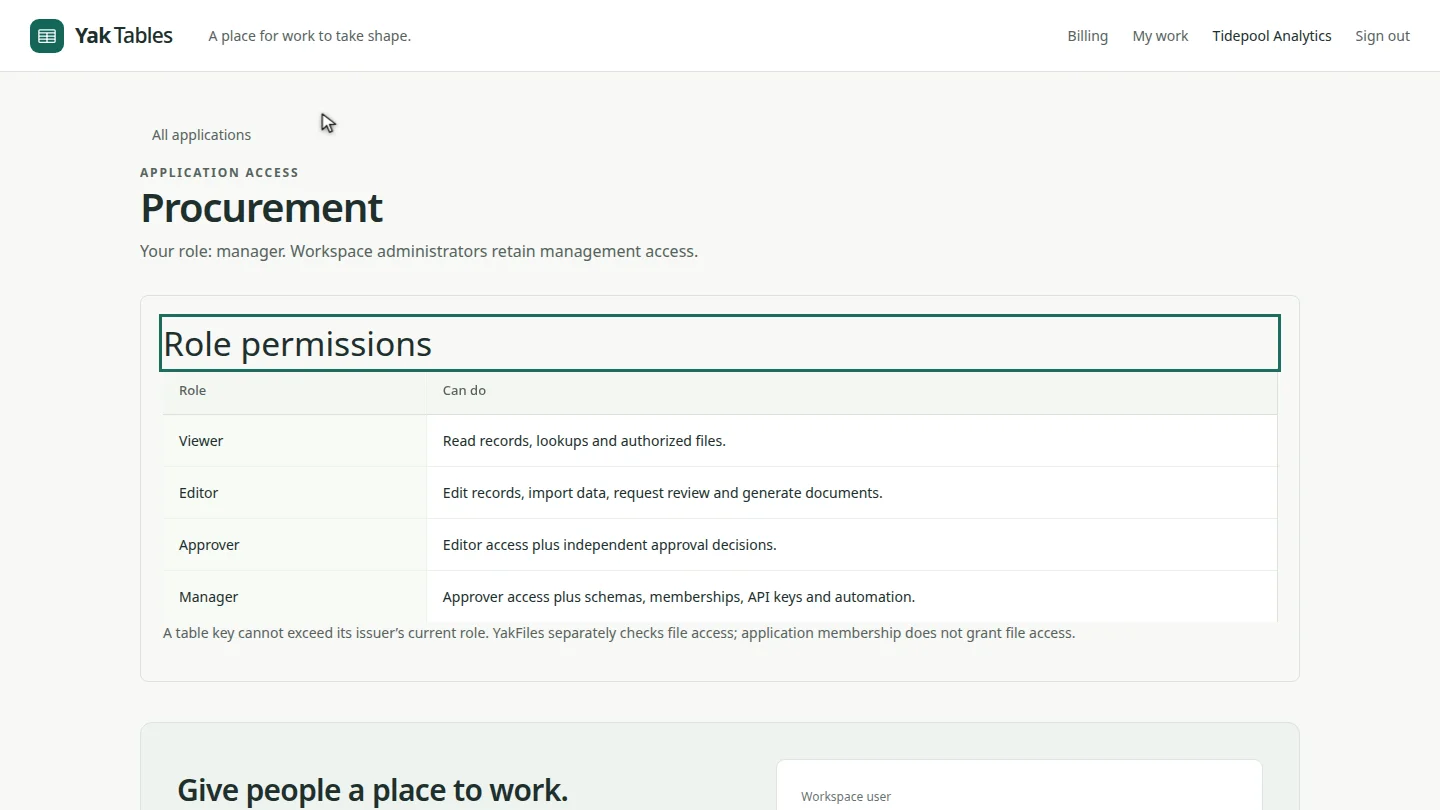
Open a table in the application, and select the application's Access link above its name. The page explains what each role can do.
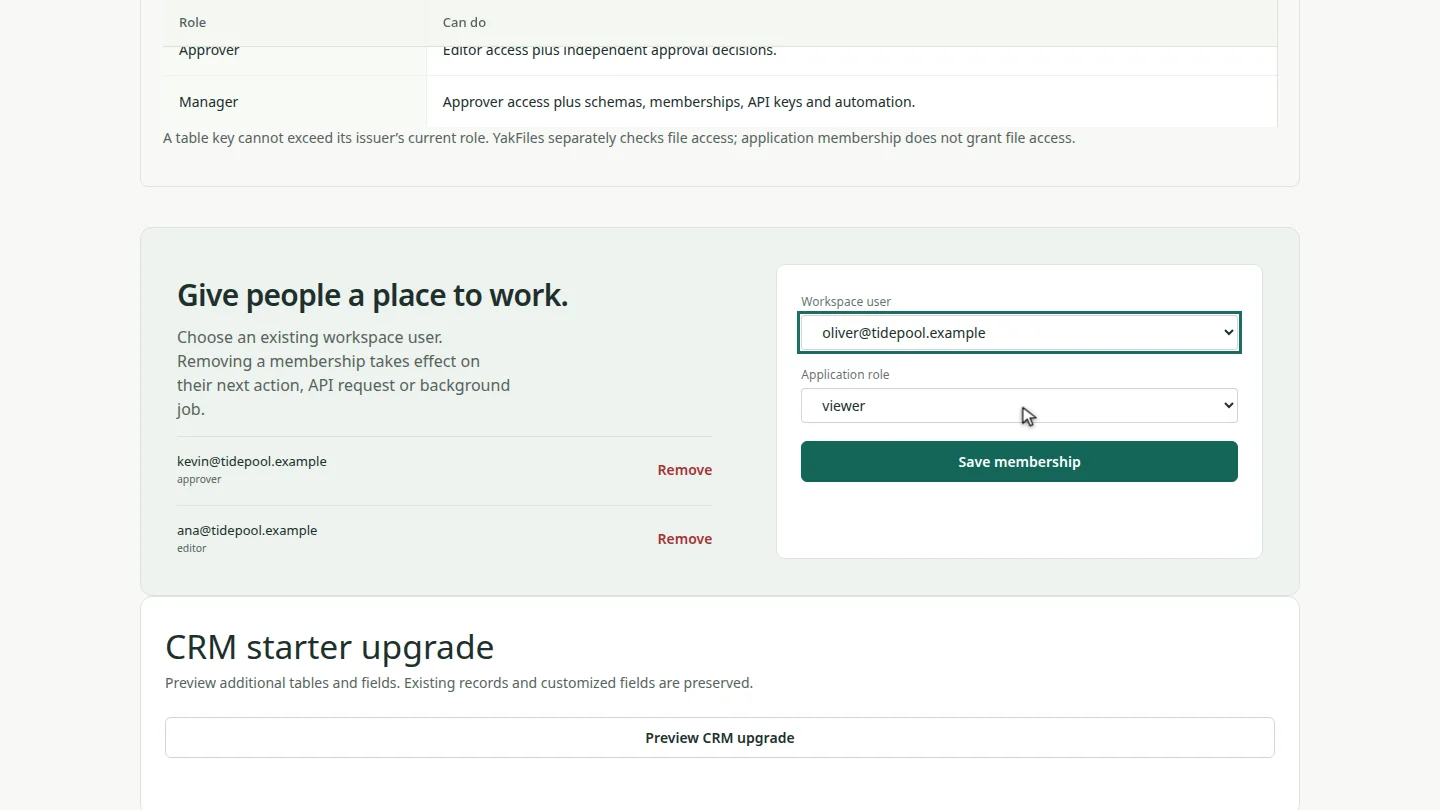
Under Give people a place to work, choose the workspace user and their application role. A viewer can read records but not change them.
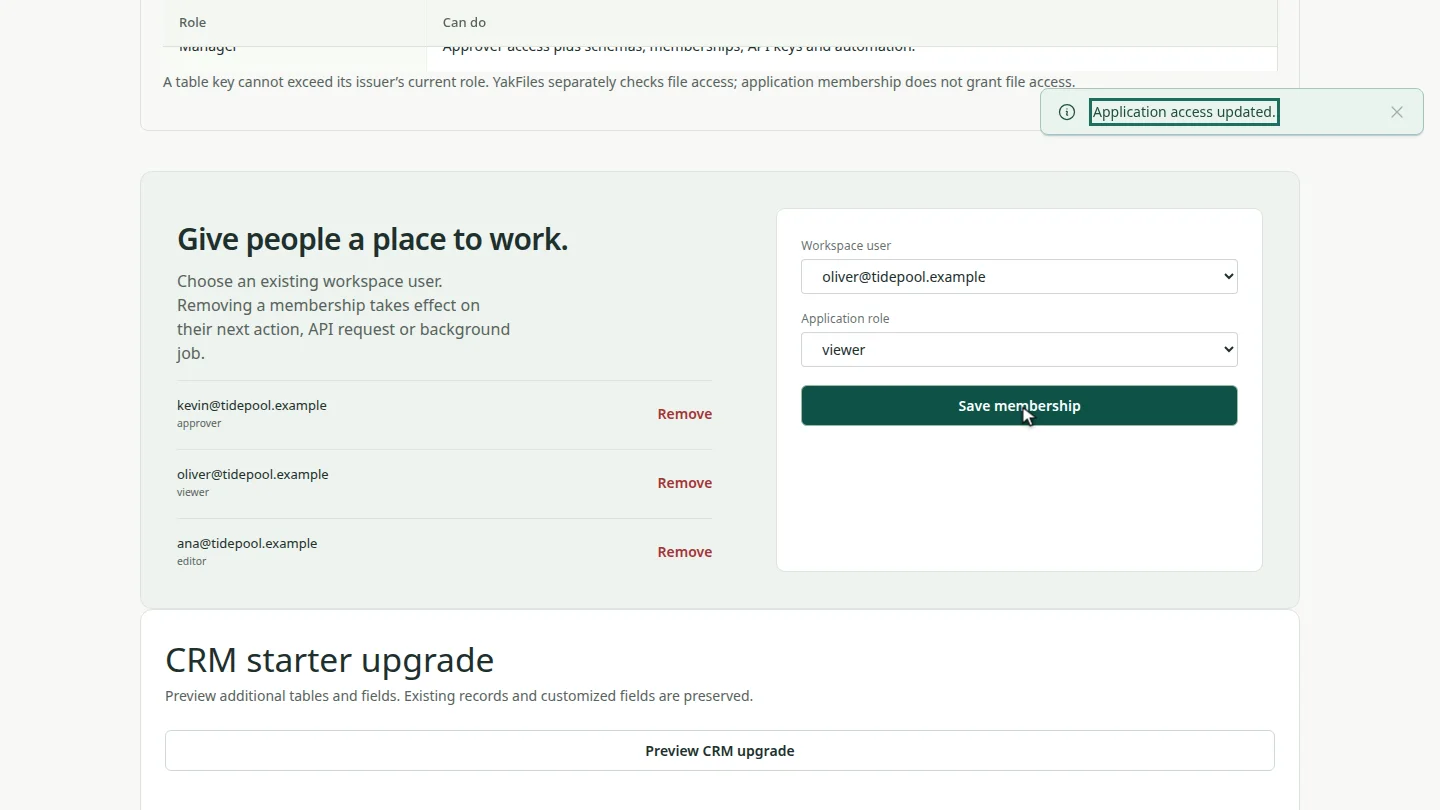
Select Save membership. The colleague joins the list with their role. Select Remove beside a name to take access away.
Steps
Open application access ▶ 0:06
Open a table in the application, then select Procurement · Access in the breadcrumb.
Choose the person and role ▶ 0:15
Choose a Workspace user and an Application role.
Save the membership ▶ 0:24
Select Save membership. The person appears in the list with their role.
Next steps
Updated 2026-10-26
permissions roles viewer editor approver share application