How to import records from a CSV file in YakTables
When the list already exists in a spreadsheet, retyping it wastes an afternoon. Import reads the columns, matches them to your fields and checks every row before anything is saved.
Before you start
- Edit access to the table
- A CSV file with a header row
Transcript
Bring a spreadsheet into a table, with every row checked before it's saved.
Open the table and select Import CSV.
Paste the CSV, including its header row, and select Read columns. YakTables matches each column to the field with the same name.
Select Preview import. The validation preview shows three valid rows and no invalid ones, so nothing needs fixing.
Select Import three records and confirm. You're back on the table, with the new rows in the grid.
Steps
Open the import page ▶ 0:06
Open the table, then select Import CSV.
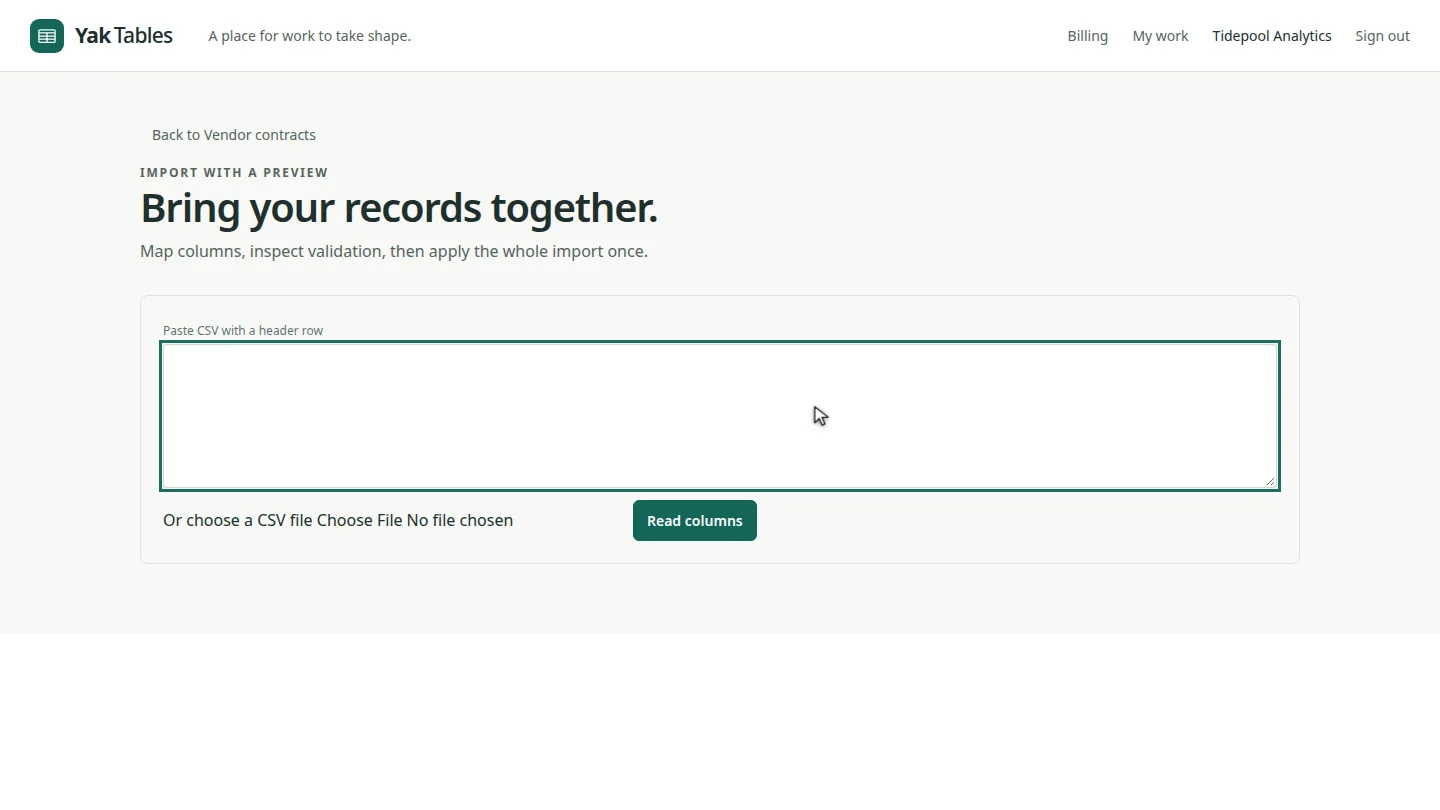
Paste the CSV and read its columns ▶ 0:10
Paste the CSV into Paste CSV with a header row, or choose a file, then select Read columns. Columns that match a field name are mapped for you.
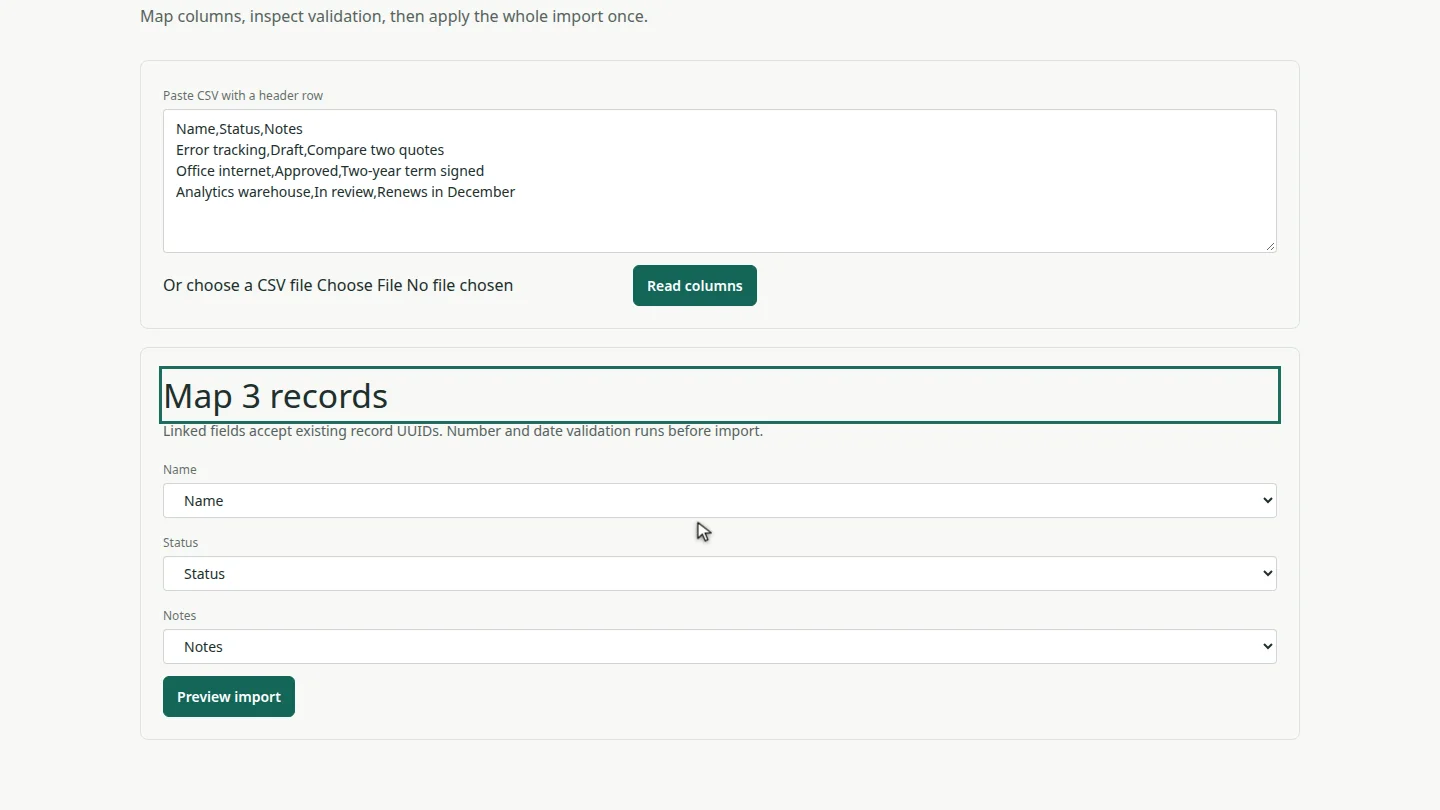
Check the preview ▶ 0:20
Select Preview import, then check the Validation preview for invalid rows.
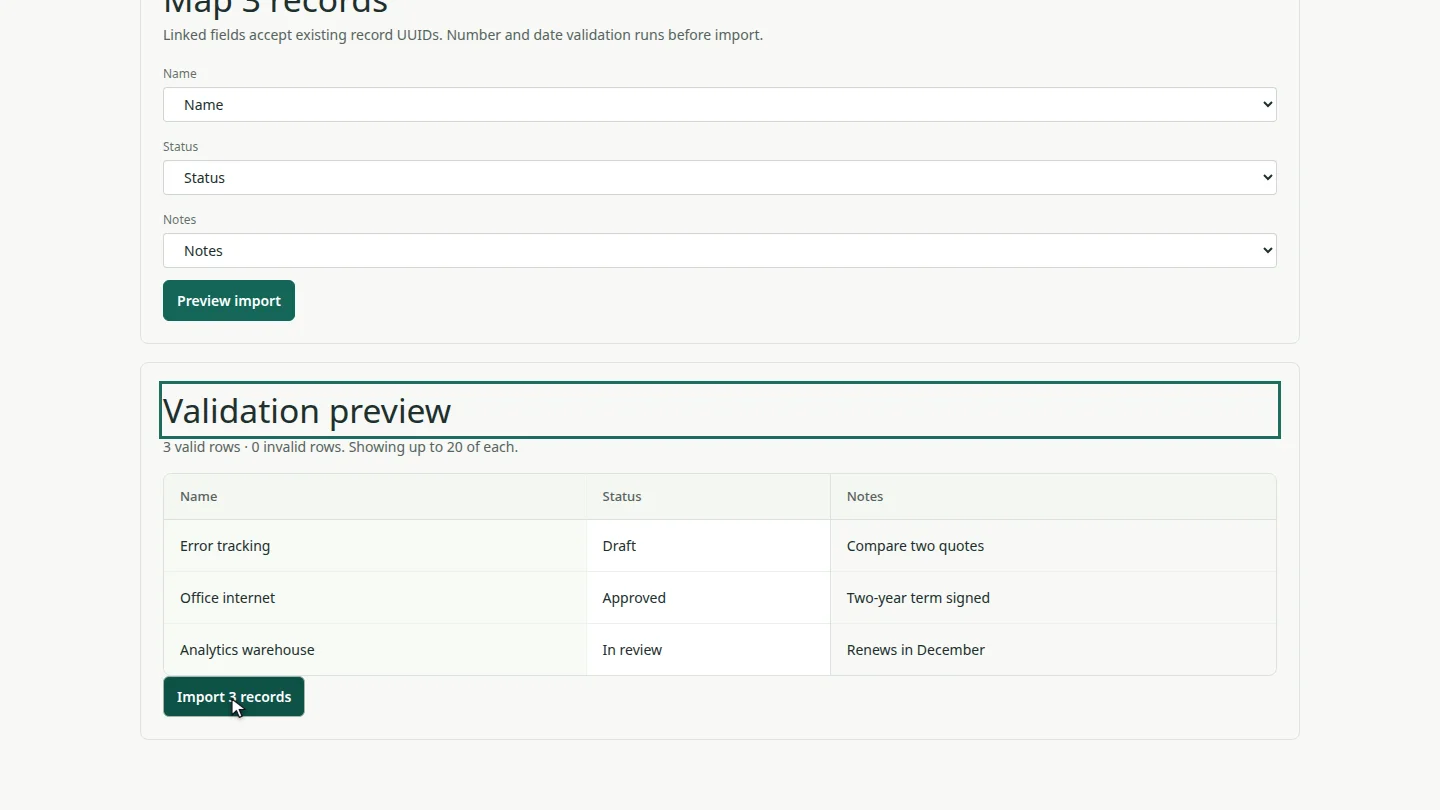
Import the records ▶ 0:28
Select Import 3 records and confirm. The table opens with the imported rows.
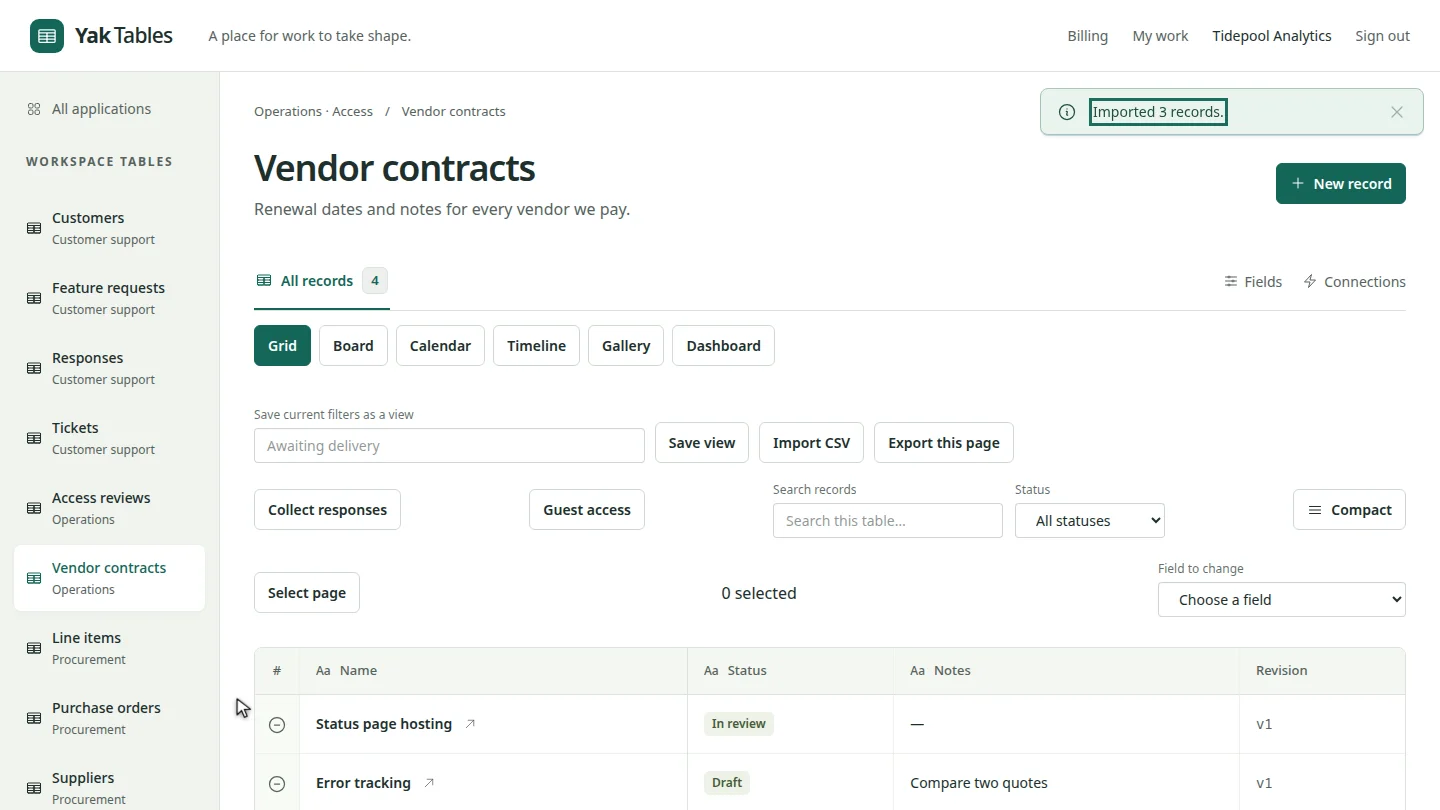
Next steps
Updated 2026-10-26
csv import spreadsheet import bulk add upload csv excel