How to request a review of a record in YakTables
Some changes need a second person to check them before work continues. A review request captures the record exactly as it was saved, and a comment tells your reviewer what to look at.
Before you start
- Edit access to the table
Transcript
Ask a colleague to check a record before work continues, and tell them what to look at.
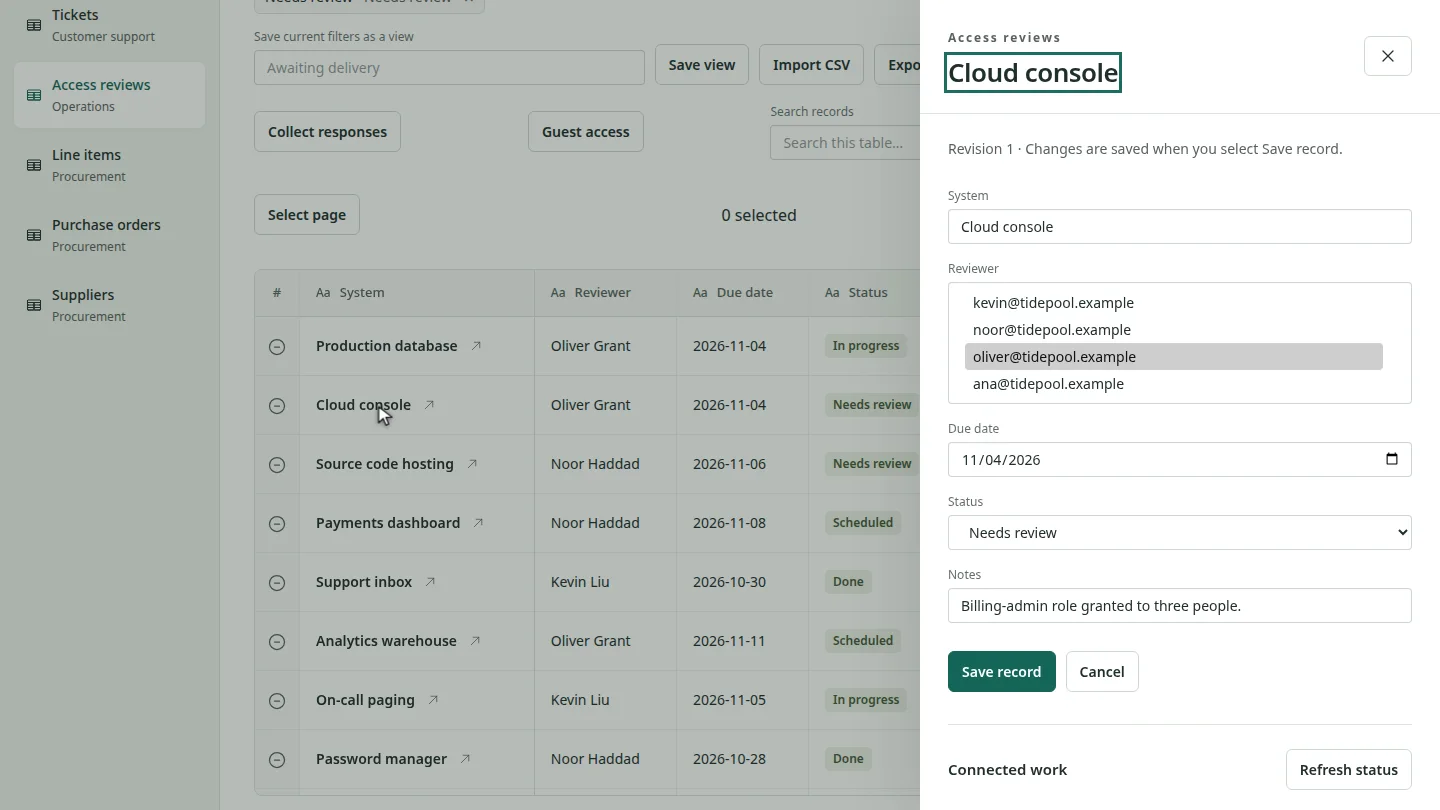
Open the table and select the record. Its panel shows the saved values and the revision number.
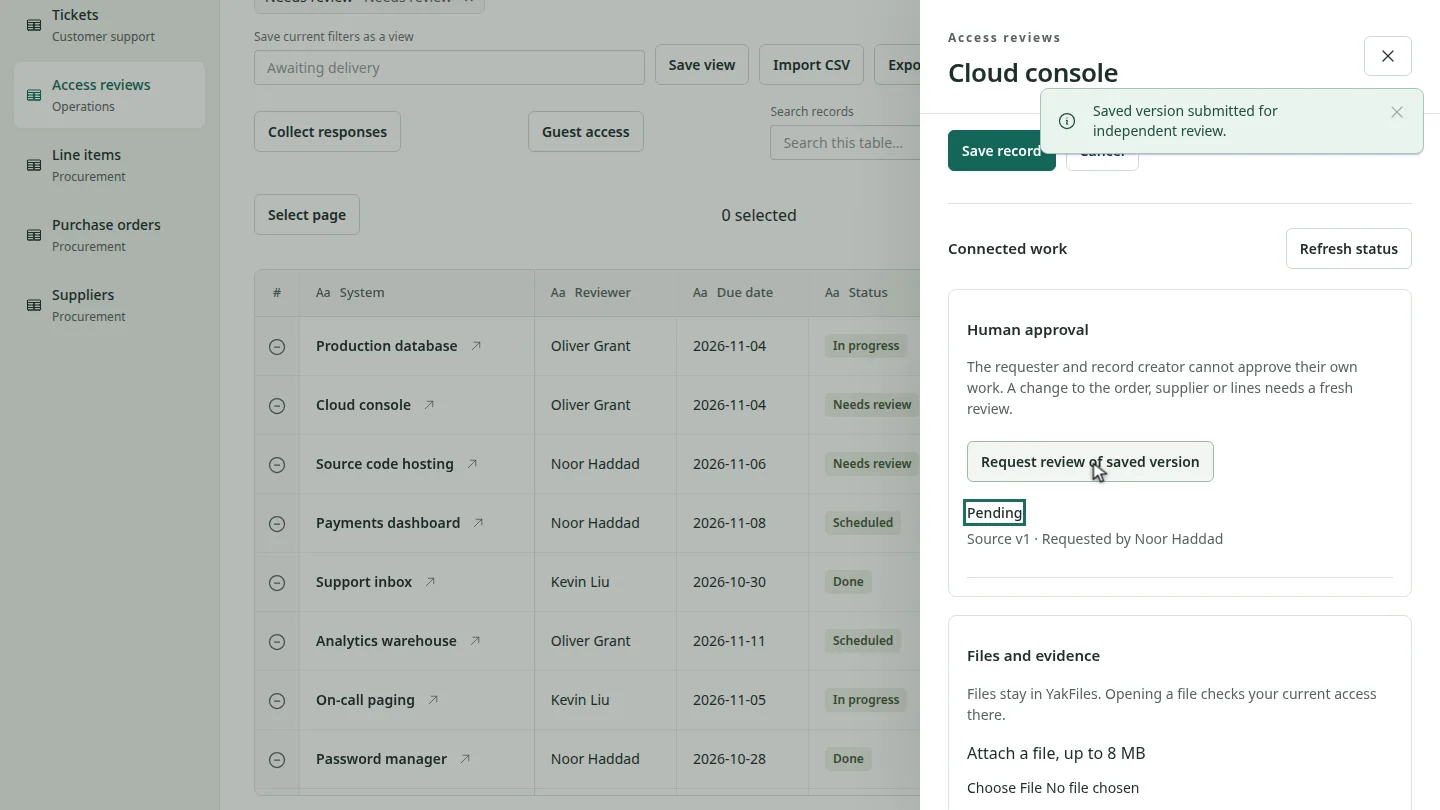
Scroll to Human approval and select Request review of saved version. A pending request appears with your name. The person who requests a review, and the record's creator, can't approve it themselves.
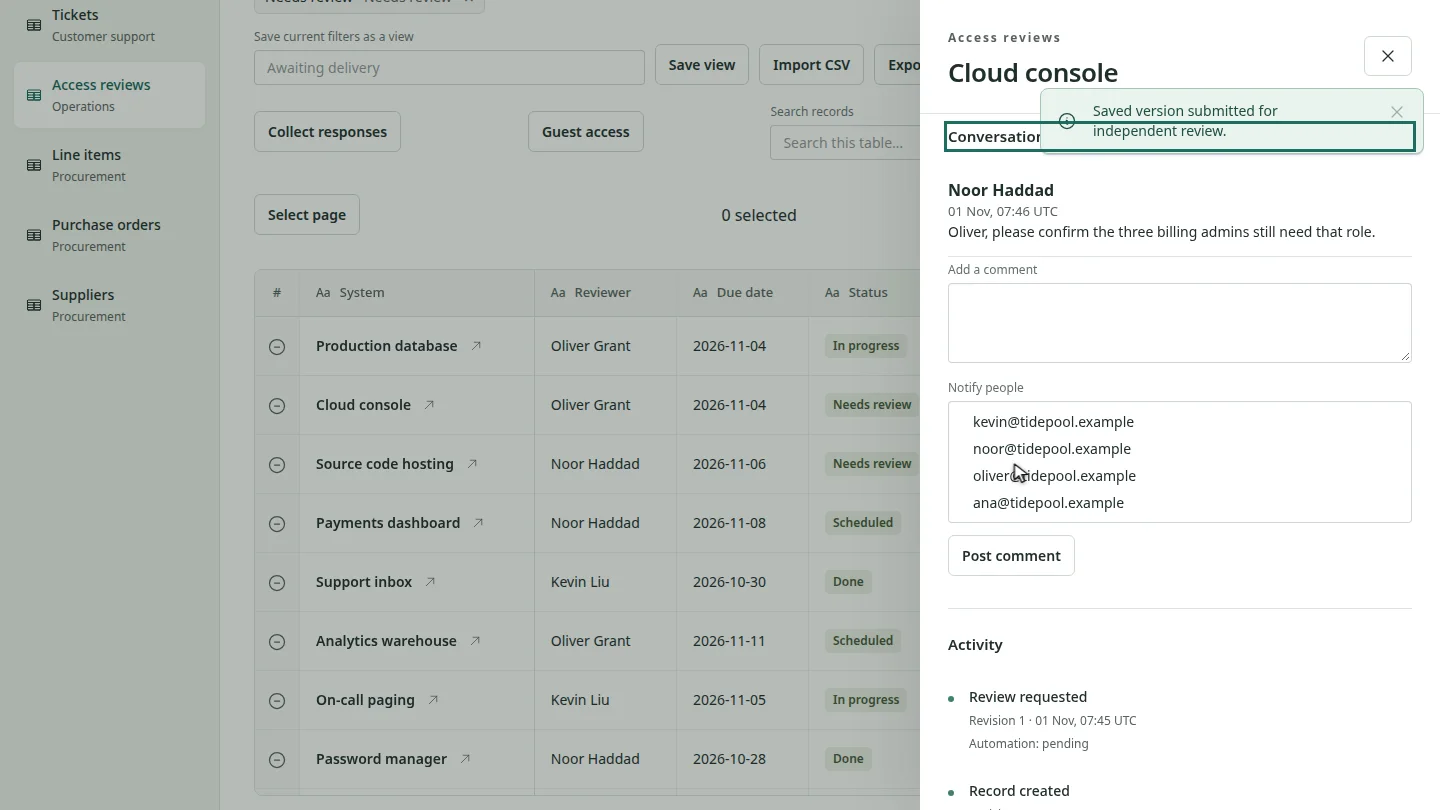
Scroll to the conversation, write what the reviewer should check, choose who to notify, and select Post comment. The comment appears with your name.
Steps
Open the record ▶ 0:06
Open the table, then select the record's name.
Request the review ▶ 0:13
Under Human approval, select Request review of saved version.
Tell the reviewer what to check ▶ 0:27
Under Conversation, enter your comment, choose a person in Notify people, and select Post comment.
Next steps
Updated 2026-10-26
approval request second pair of eyes comment mention four eyes