How to update many records at once in YakTables
When a batch of work changes together, such as reassigning a set of tickets or raising their priority, a bulk edit saves opening each record. The batch is all-or-nothing and the last bulk edit can be undone.
Before you start
- Edit access to the table
Transcript
Change the same field on many records in one step, and undo it if you need to.
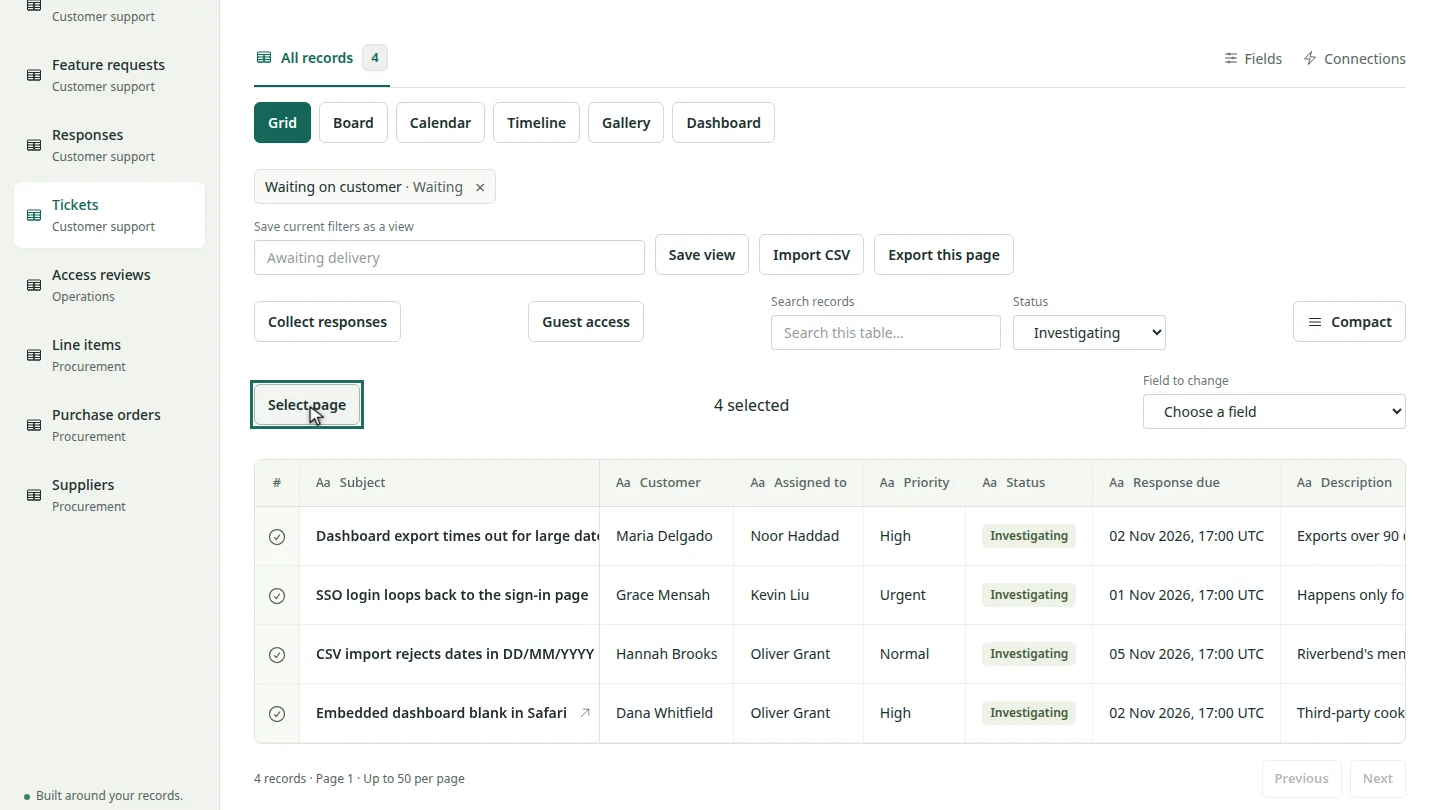
Open the table in the grid and filter to the records you want. Select Select page to choose every record on the page.
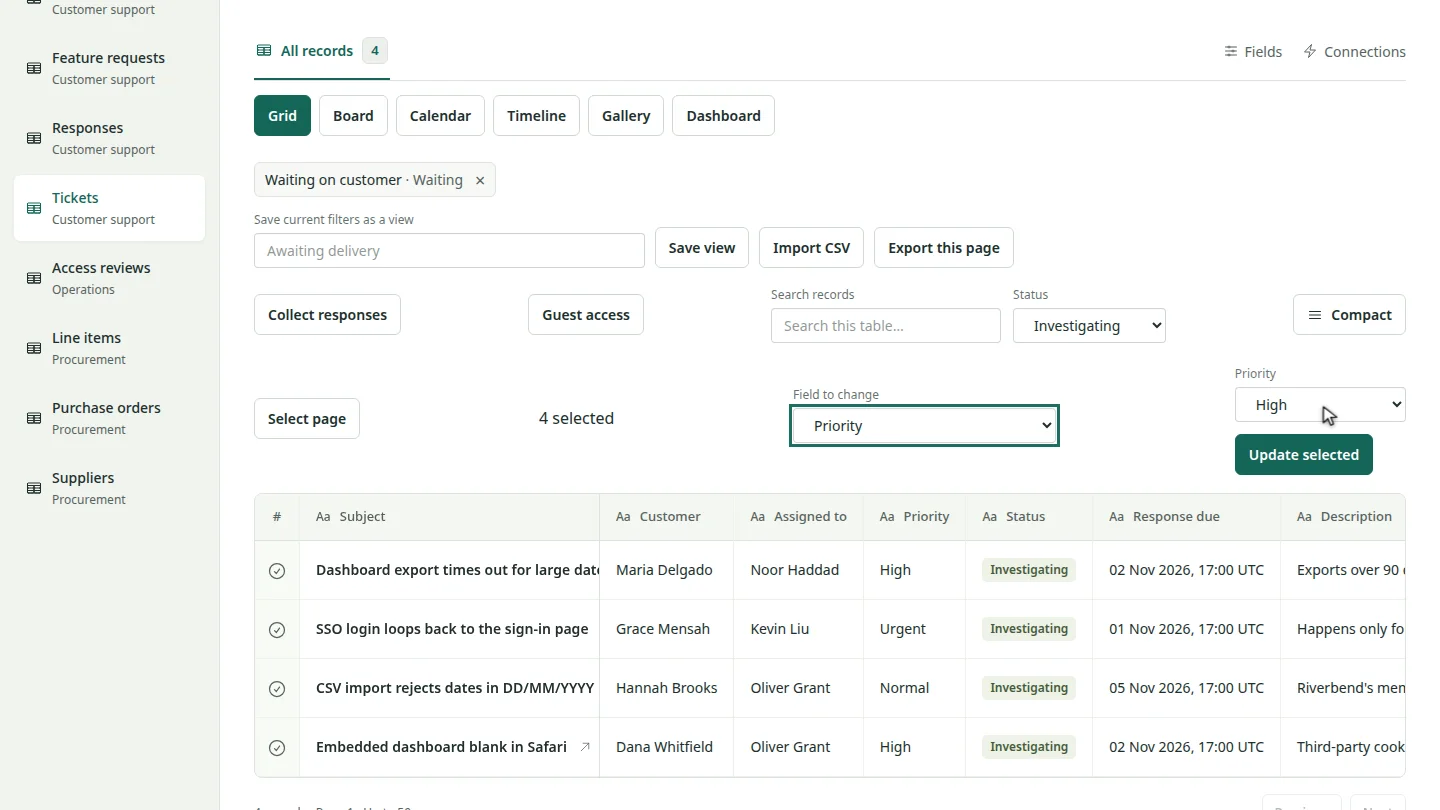
Under Field to change, choose the field. Then set its new value.
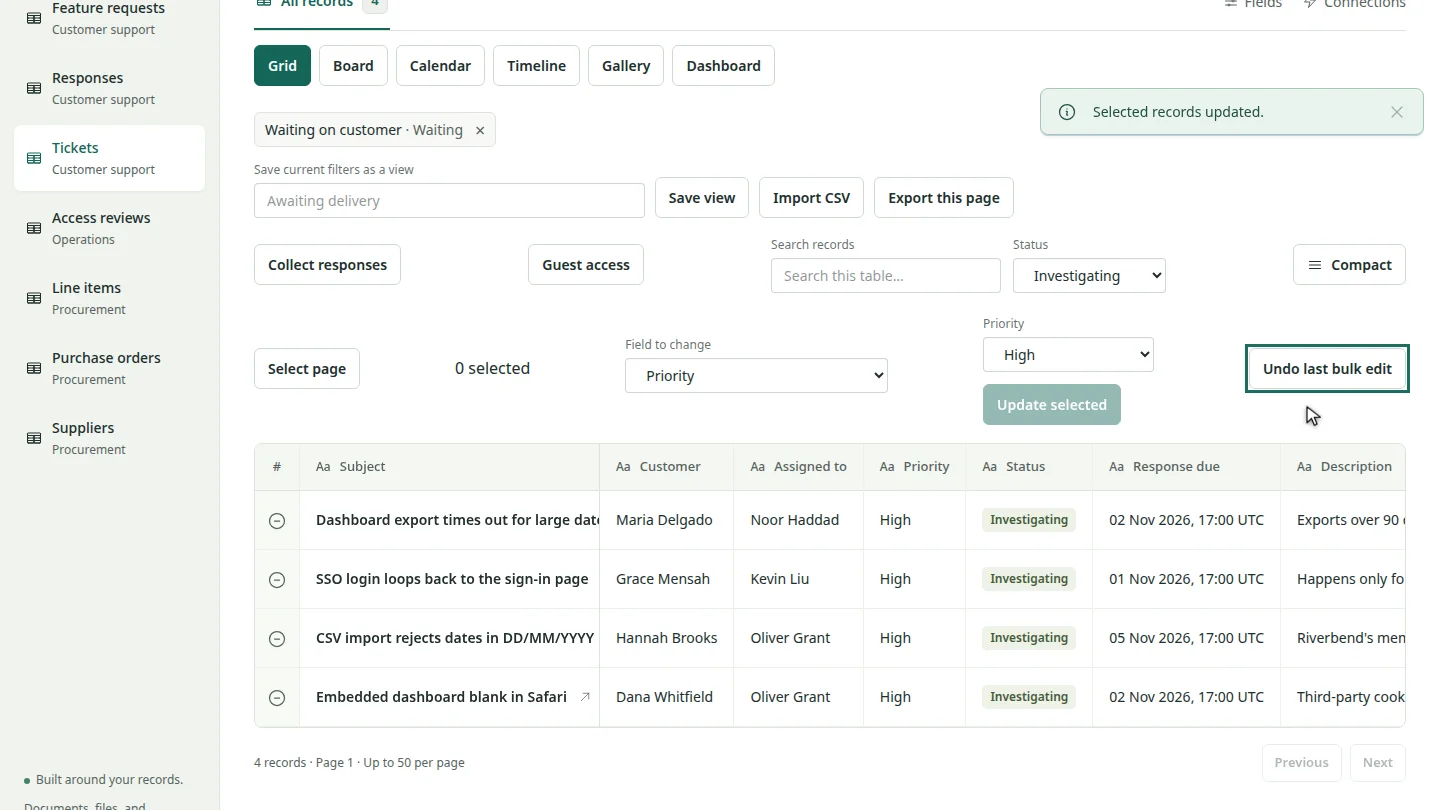
Select Update selected. Every selected record changes together, or none of them do.
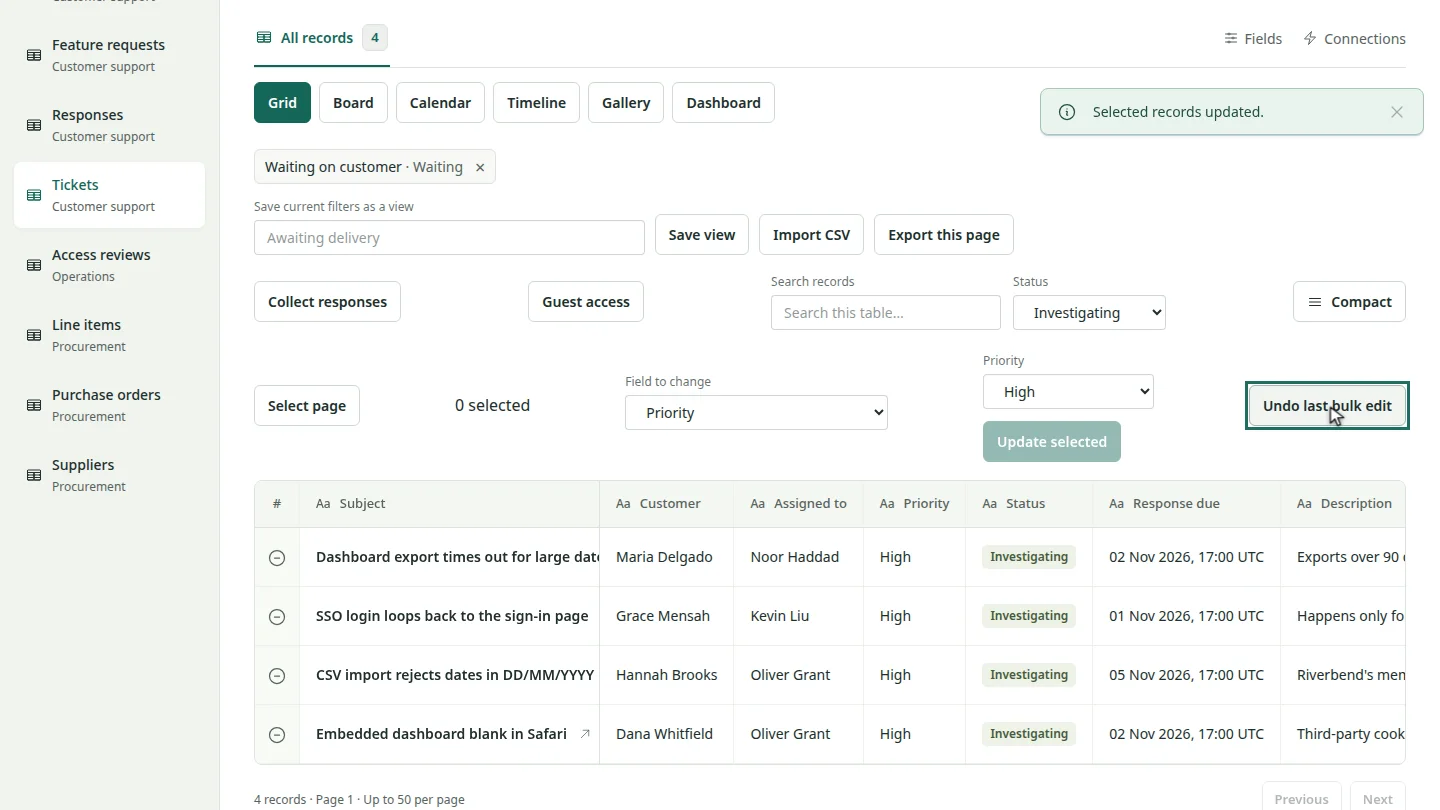
Changed your mind? Select Undo last bulk edit to put the previous values back.
Steps
Select the records ▶ 0:06
Open the table in Grid view. Filter it if you like, then select Select page, or tick individual records.
Choose the field and value ▶ 0:14
In Field to change, choose a field, then set the new value.
Update the records ▶ 0:19
Select Update selected. If someone changed one of the records since you loaded the page, nothing is changed and you are asked to reload.
Undo if needed ▶ 0:25
Optional: select Undo last bulk edit. Records someone edited after your bulk edit are left as they are.
Next steps
Updated 2026-10-31
bulk edit update many records mass update change several records undo